A lot of our customers choose to use Google Workspace (formerly G Suite) for their email accounts on their web hosting packages with us.
Personally, I moved some of my own domains over to Google Workspace back in 2018 and have been a happy user ever since. They actually started out offering it for free, which was a great deal, but now offer it for $7 per month, per user.
Regardless, it's still a great platform, and I want to show you how to correctly configure your Webfoundr account to use it!
Step 1: Set up Your Account At Google
We recommend going directly to Google's Google Workspace page and signing up directly with them.
They have a full functioning free trial for 14 days, which allows you to make a decision if it's going to work for your business or not.
Once you have signed up, you just need to edit your Mailer Exchange records at Webfoundr to move the email over to Google.
Step 2: Modify Your Email Routing
Before we set up the mailer exchange records, we want to tell cPanel we're no longer going to be using it for email. This helps the system prioritize where the email is going to go.
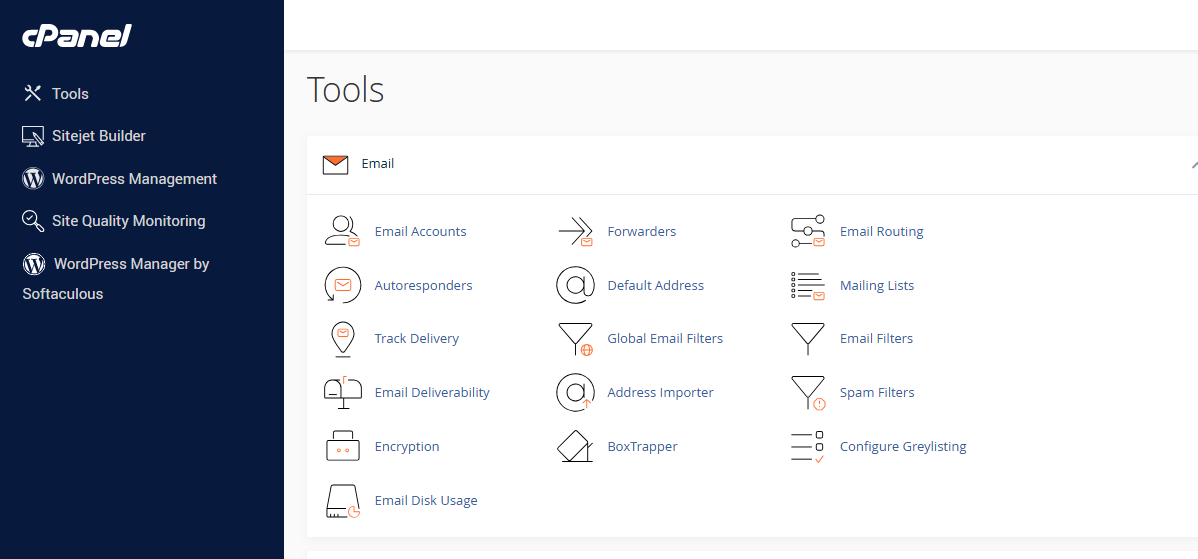
Log in to cPanel for the domain you want to modify and click on Email Routing:
From here, you want to change it from Automatically Detect Configuration: Local (recommended) to Remote Mail Exchanger:
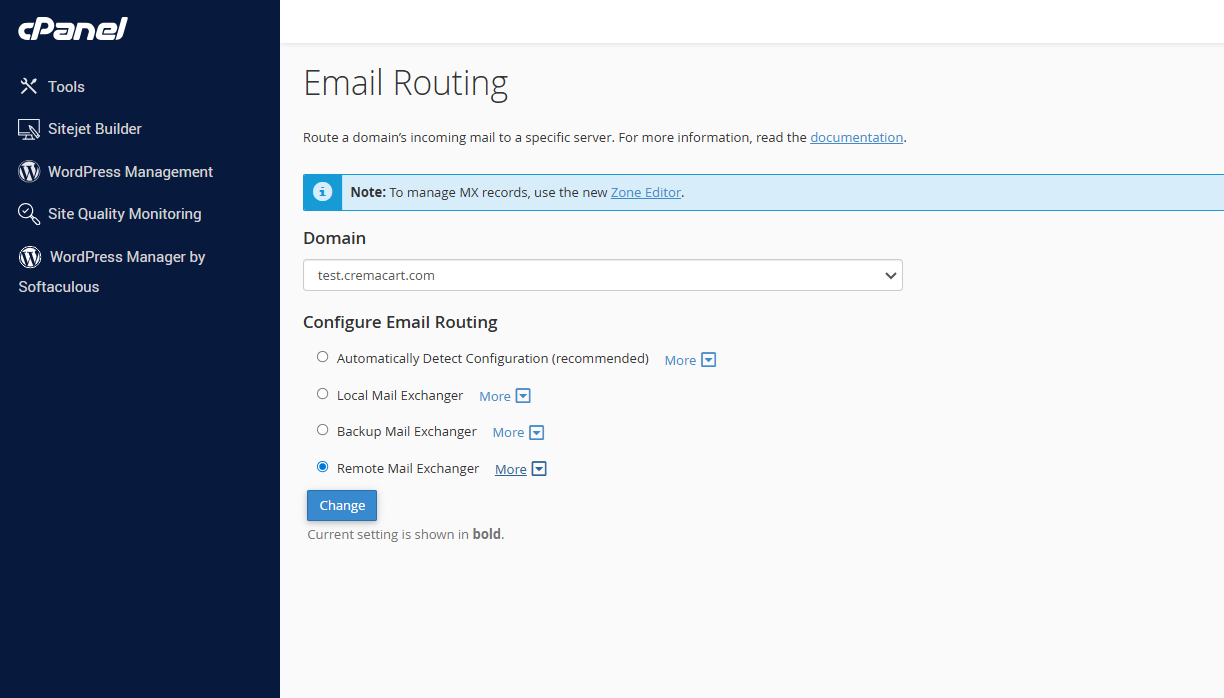
Once you've selected it, click on Change, and you're ready to modify the mailer exchange records.
Step 3: Modify Your Mail Exchanger Records (MX Records)
This step is going to remove your local (Webfoundr) MX records and replace them with Google's.
Once you do this, your email will no longer be handled by Webfoundr. This includes all email accounts, mail forwards, auto responders, etc. Going forward, all of these items will need to be set up directly inside Google Workspace's interface.
To modify these records, return to cPanel and navigate to Zone Editor.
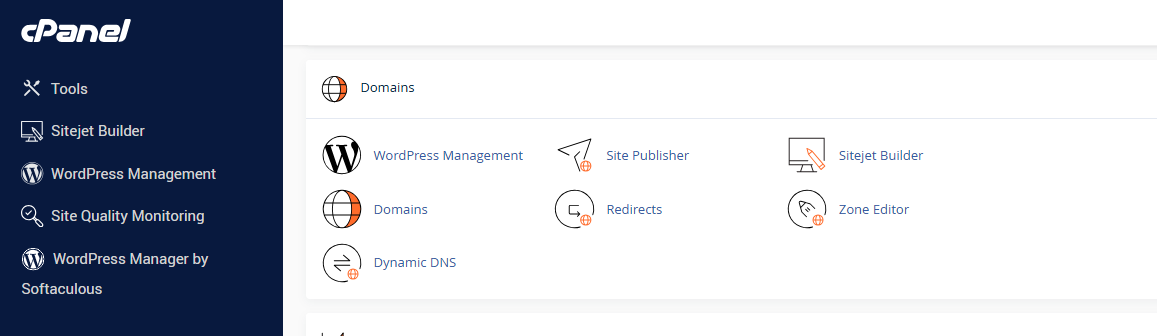
You can then click the +MX Record to add all of Google Workspace's MX record values:
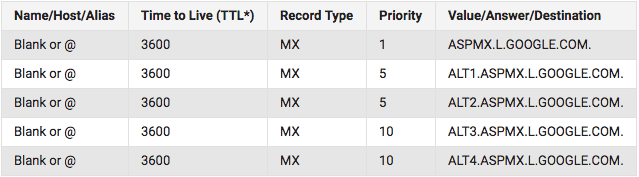
You want to add all five, with priority 1 first, followed by the destination without the trailing period (.):
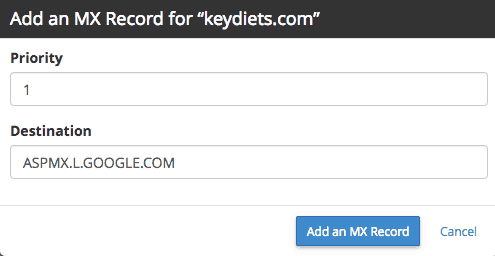
Repeat this process until all five are added.
Once finished, you need to remove the default MX record.
You can do this by clicking on Manage:

I like to click on the MX filter, so I only see those records.
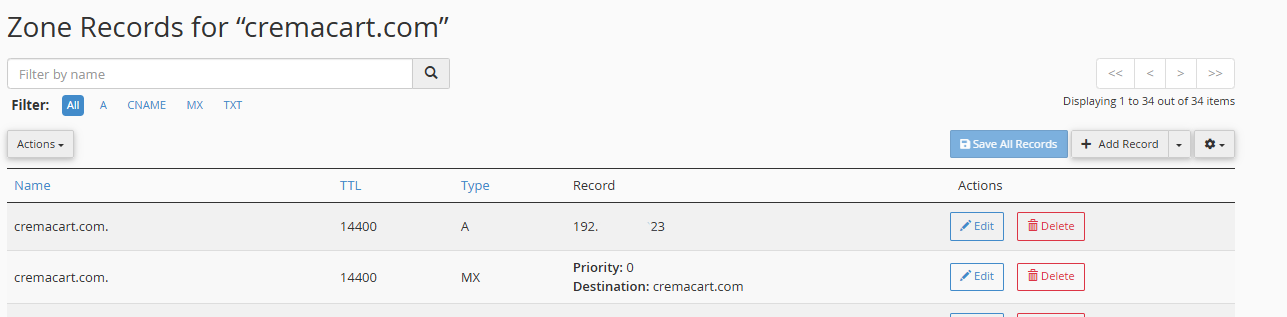
Then you want to click the Delete beside the default MX record (Priority: 0):