How To Add DKIM And SPF Email Authentication Records
Setting up proper DKIM and SPF DNS records plays an essential role in helping reduce incoming Spam as well as preventing malicious users from spoofing your email addresses.
If you log in to your cPanel -> Email Deliverability (under email), you can easily make sure you're fully authenticated.
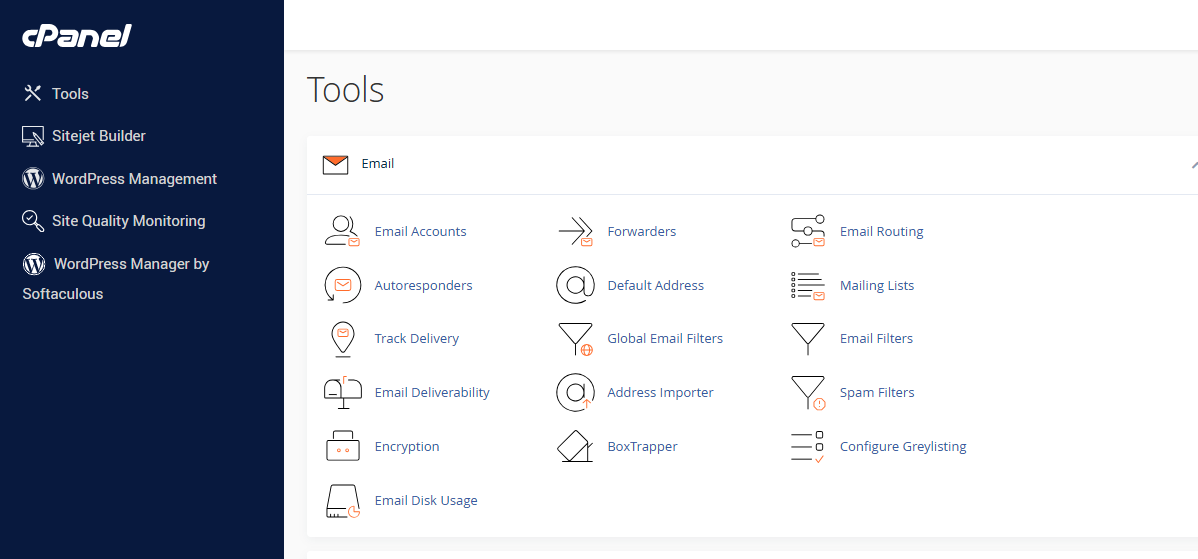
DKIM is a means of verifying incoming email. It ensures that incoming messages are unmodified and are from the sender who they claim to be. This feature works to prevent incoming spam messages.
The SPF system allows you to specify servers and IP addresses that are authorized to send mail from your domain(s). This feature works to prevent outgoing spam messages.
By default, when your account is created on Webfoundr, a DKIM key and SPF record are automatically created for you. Additional domains you add to your account will also have a DKIM and SPF record already added for you. But if you need to update or make changes to your SPF record, simply click on 'Manage" next to your domain.
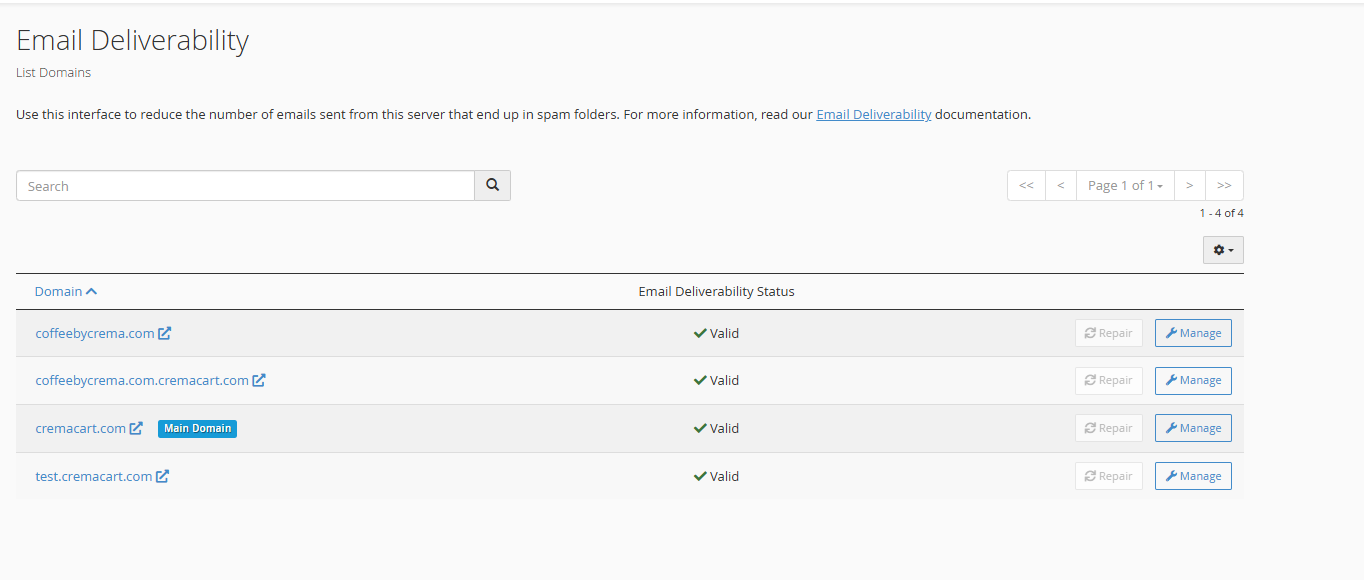
Your DKIM key shouldn't need any changes. But your SPF may need to have additional IP addresses or include additional ones. Click on the customize feature!
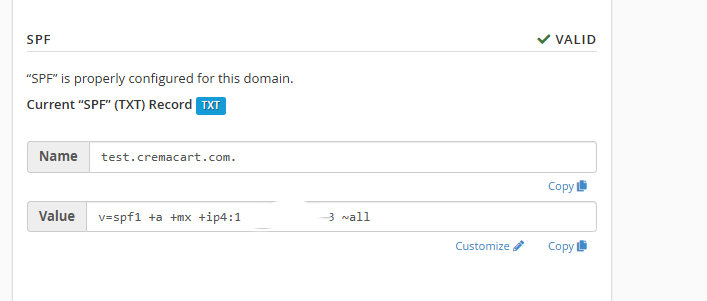
On the next page, scroll down, and you will see options to add additional IP addresses or include records. Here at Webfoundr, we automatically set up your account to use the include: spf.webfoundr.net or _spf.cloudwebhosting.com. We additionally add the IP address your account is located on. But if you need to add additional records, this is the place!
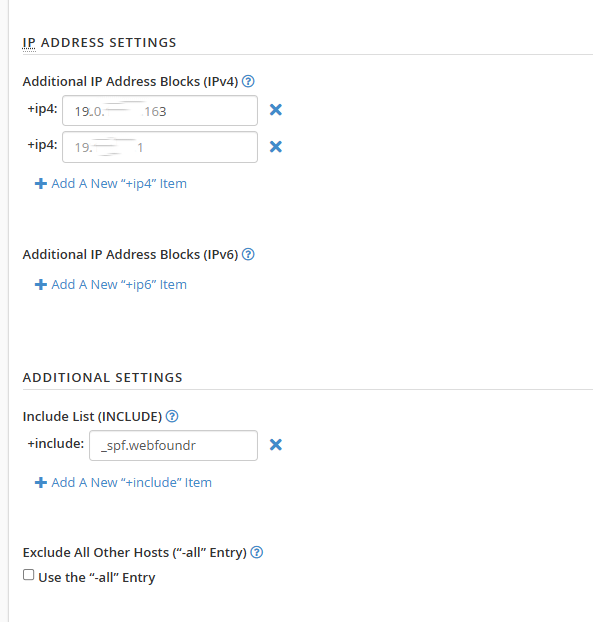
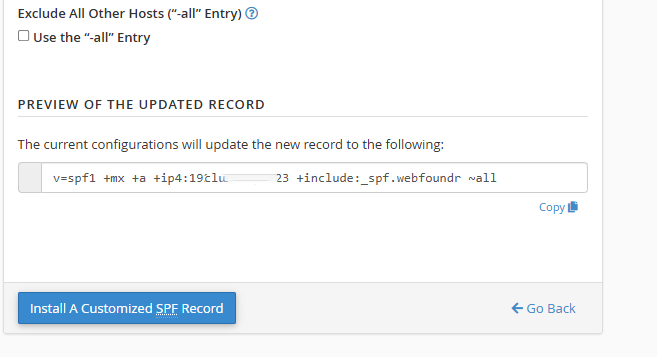
After you have made your updates, scroll down to the bottom and click on this button:
Alternatively, you can use the Zone Editor!