All of our Hosting packages allow you the ability to use your own private name servers.
Using private name servers means your customers will input your name servers into their domains to link them to your hosting.
Example, instead of ns1.webfoundr.ca & ns2.webfoundr.ca you can use ns1.YOUR-DOMAIN.com !
This tutorial will cover how to configure name servers using your domain name registered with Webfoundr.
For this tutorial we will assume the domain is new and registered with Webfoundr.
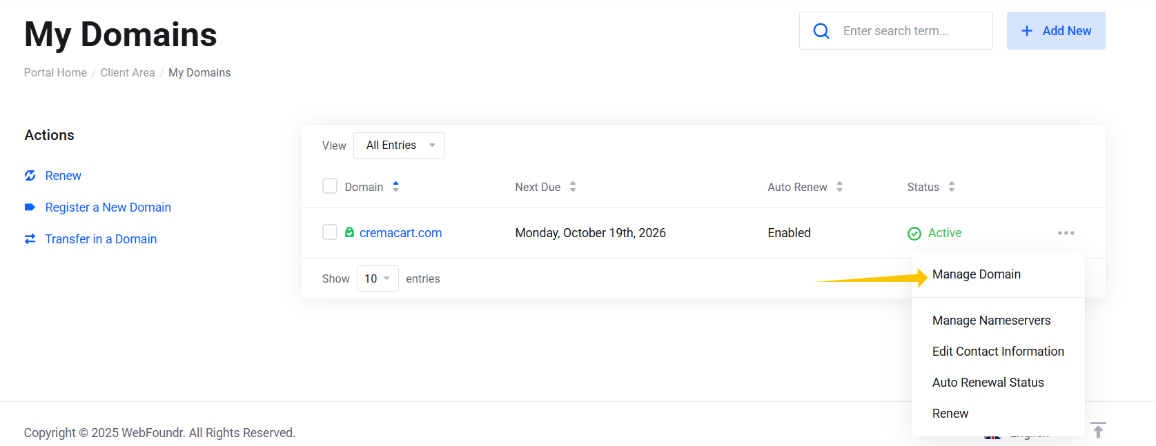
Step 1: Login to your Webfoundr Client Portal. Find the domain and click on the 3 dot menu to the right and click on Manage Domain.
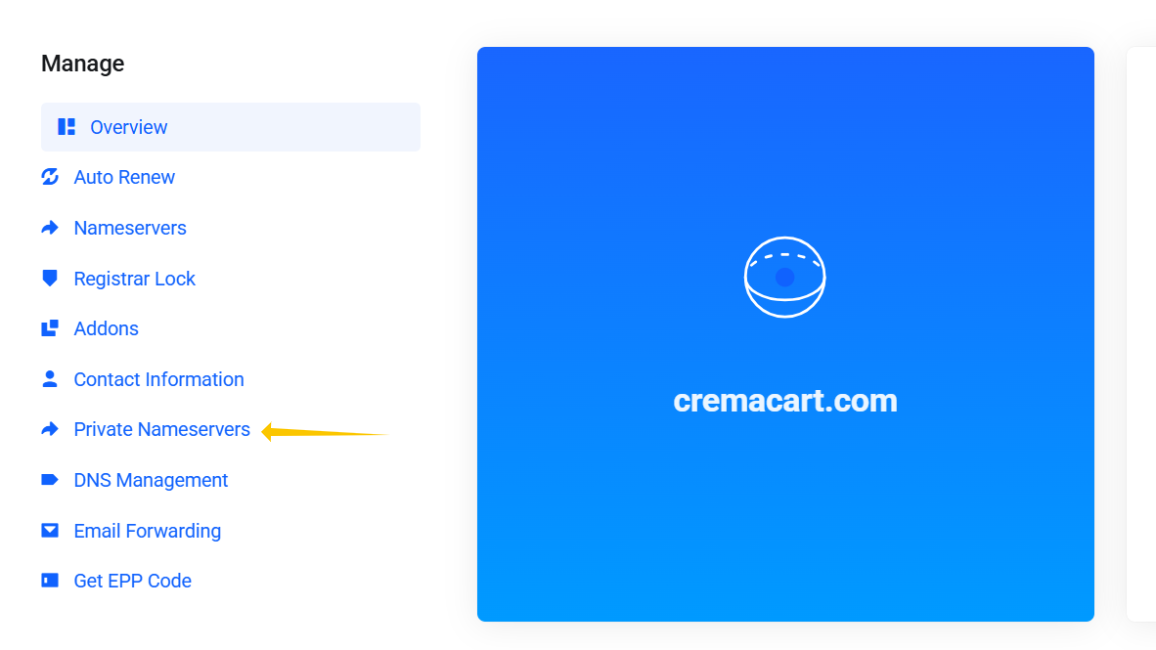
Step 2: Now click on Private Nameservers!
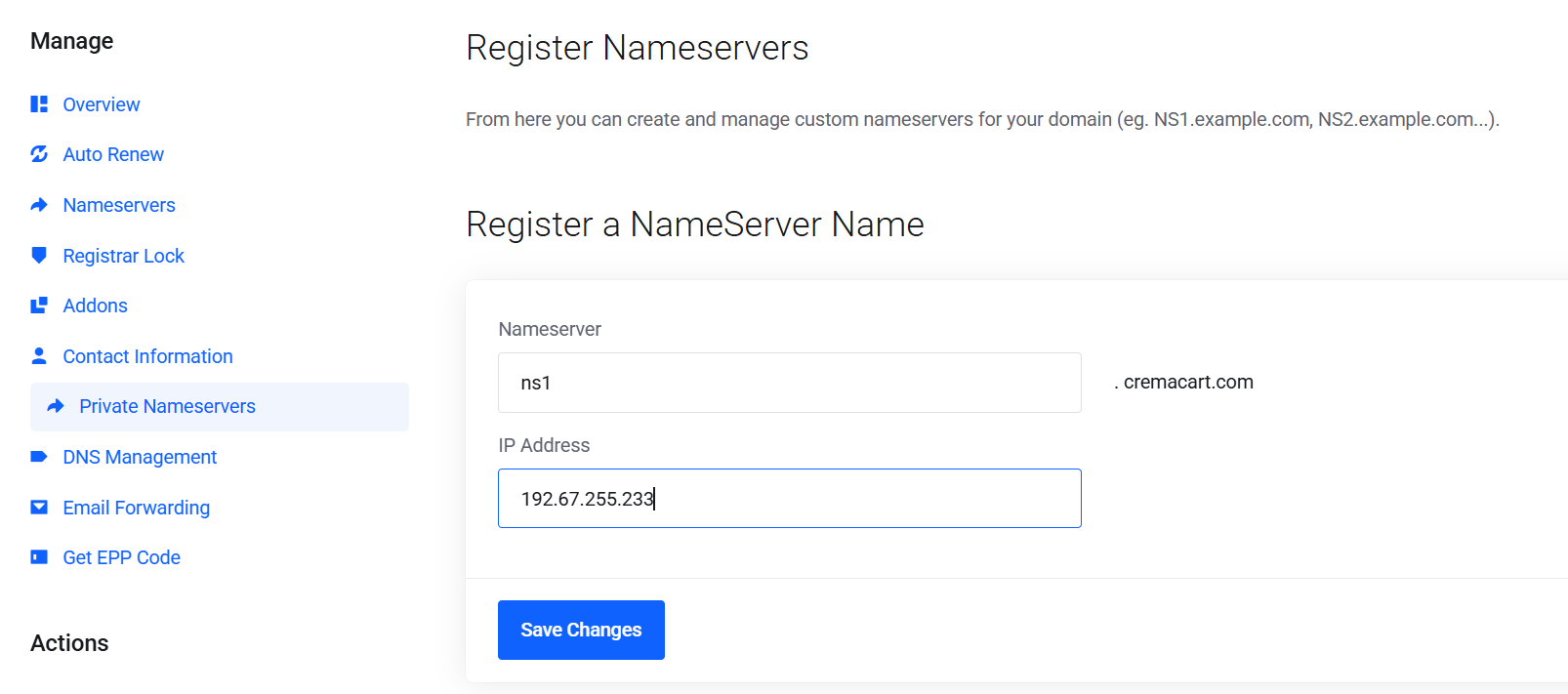
Step 3: Check your setup email for your Account. It will have the associated correct IP addresses to enter here. Or ask a tech in our 24/7 Live Chat! You'll want to have those IP addresses handy at this point. You'll be adding NS1 and NS2 with the associated IP addresses here! Do one at a time.
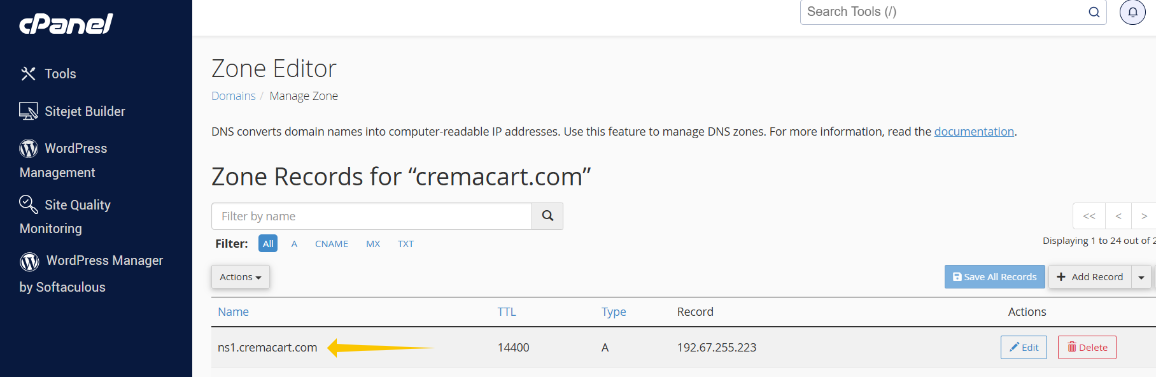
Step 4: Login to your cPanel account, use the Zone Editor to add a A records associated with NS1 i just added.