You do not have to wait until your domain is transferred to Webfoundr to begin using it with our Web Hosting. Simply enter the nameservers of your web hosting package (found in your welcome email or our Client Portal) at your current provider and they'll transfer over automatically.
You can easily transfer your existing domain from another web host or registrar to Webfoundr by following these steps:
Note: A domain transfer is not a website migration. This article explains how to move an existing domain registration over to Webfoundr. To learn about migrating your website and all its data read this.
Please note, prices listed below are for example only and may not reflect the ever changing cost of doing business on the internet.
Unlock your domain and obtain the EPP/Auth code from your current registrar
In order for us to begin the domain transfer process, you first need to login to your existing domain registrar's (or web host) control panel and unlock the domain and obtain the EPP (or authorization code). The domain lock is a tool that helps prevent domain theft and can normally be disabled with one click.
Note: If you registered your domain within the last 60 days or recently made modifications to your contact details, you may have to contact your existing provider to have them remove the lock. Depending on the provider, they may make you wait until the lock auto expires, which is 60 days (3 months) by default.
Once the domain lock is off, you then need to obtain the EPP (sometimes referred to as an authorization code) to your domain. This acts as a password adding another layer of security to prevent domain theft. Most domain registrars/web hosts provide access to this code through their control panel, where the lock is disabled.
Go to our Instant Domain Search, type in your domain, and click transfer
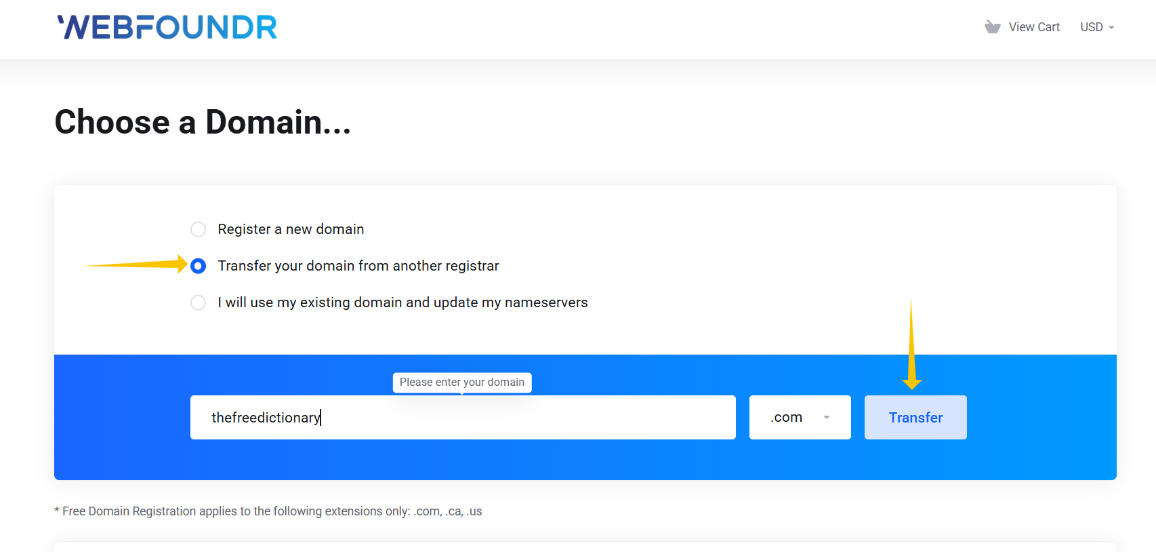
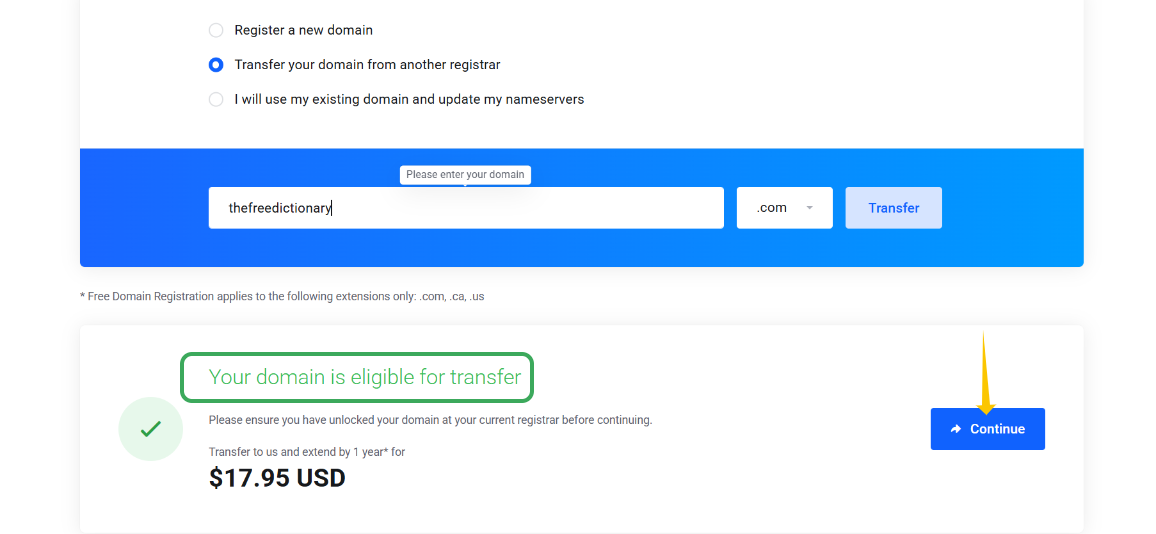
Enter your valid EPP/Auth code
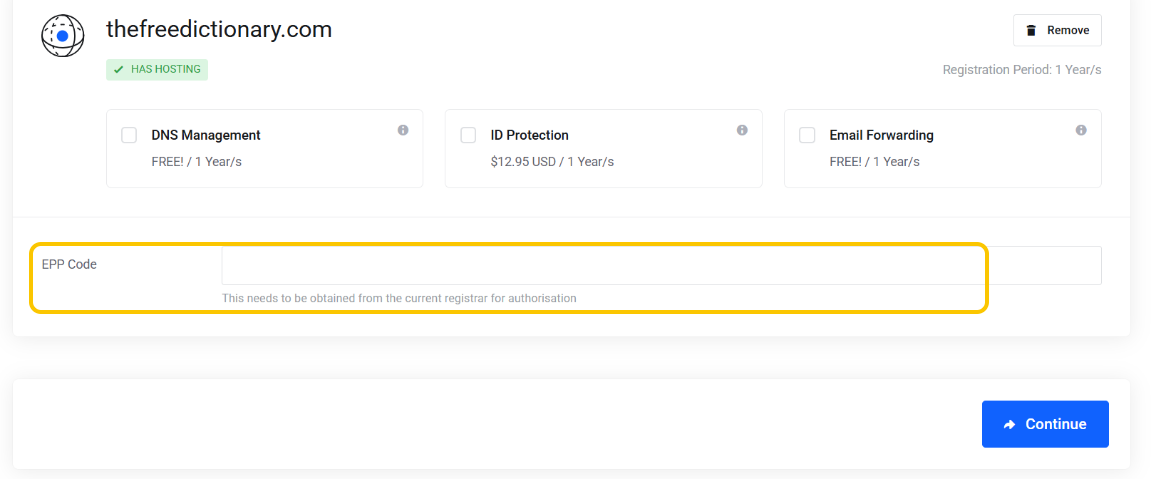
The next screen will ask for the EPP/Auth code you requested from your current provider_. Please enter this here and make sure it's correct (the transfer process cannot begin until we have a valid code).
Once completed, click Add to Cart.
Configure your domain
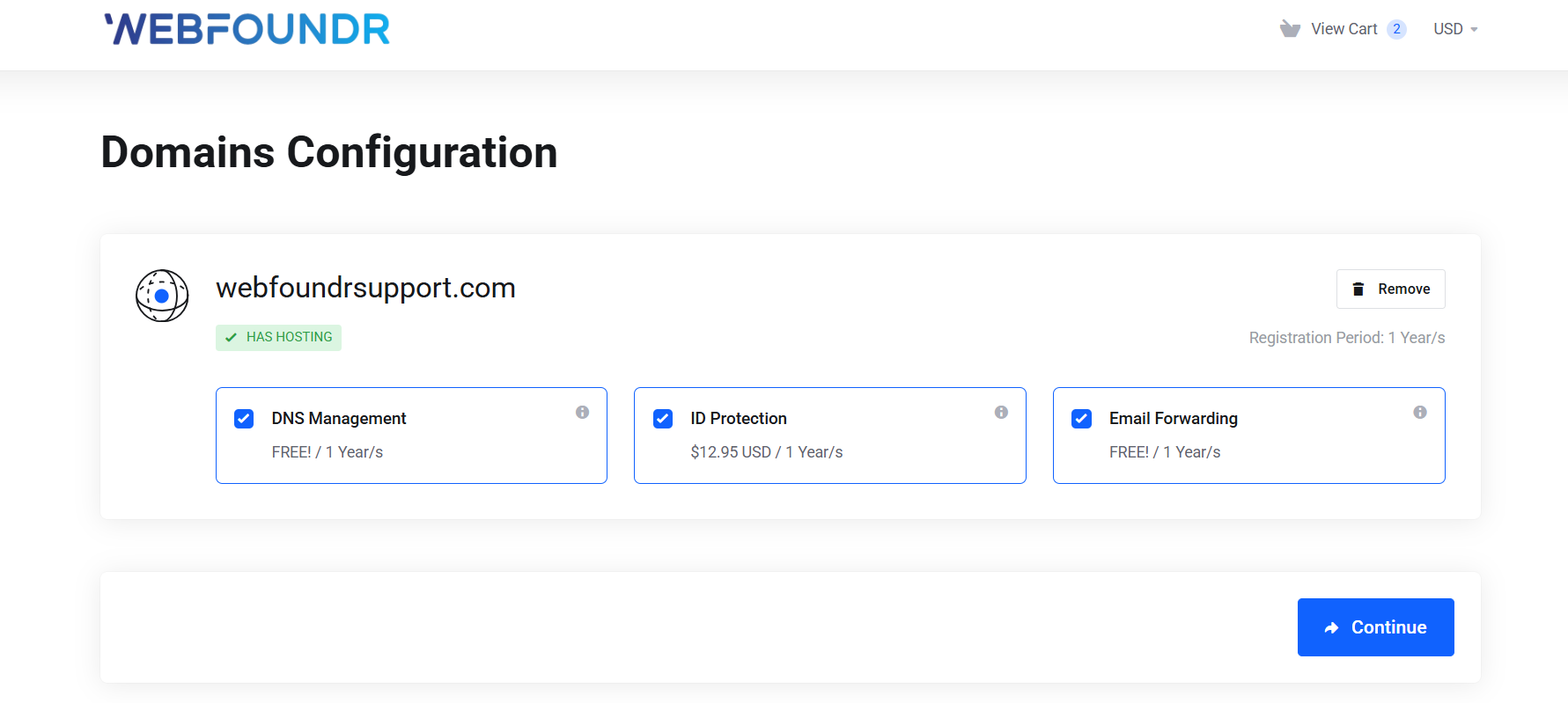
If you don't already have web hosting with us, or you'd like to add another account, you may add it here. If you purchase a Web Hosting package for 2 years or longer, the domain transfer is free! Additionally you can configure your domain with some extra services:
DNS Management - Allows you to manage DNS records for domains if you do not have a hosting service with us.
ID Protection - Protects your personal information from being shown in the public Webfoundrtest_ database. Includes an email forward with Spam filtering.
Email Forwarding - Provides the ability to forward email @yourdomain.com to an existing email account (i.e. @gmail.com). Not needed for customers who purchase hosting with their domain.
Nameservers - Enter the nameservers you wish to use for your domain. If you have an existing hosting service, these can be found inside our Client Portal or in your welcome email. If you're ordering hosting with your transfer, these will be automatically set for you.
Tip: If you're wanting to use your hosting immediately with domain, enter the nameservers related to your hosting account in your current provider. They'll transfer over automatically.
Once finished configuring, click Continue.
Review your cart
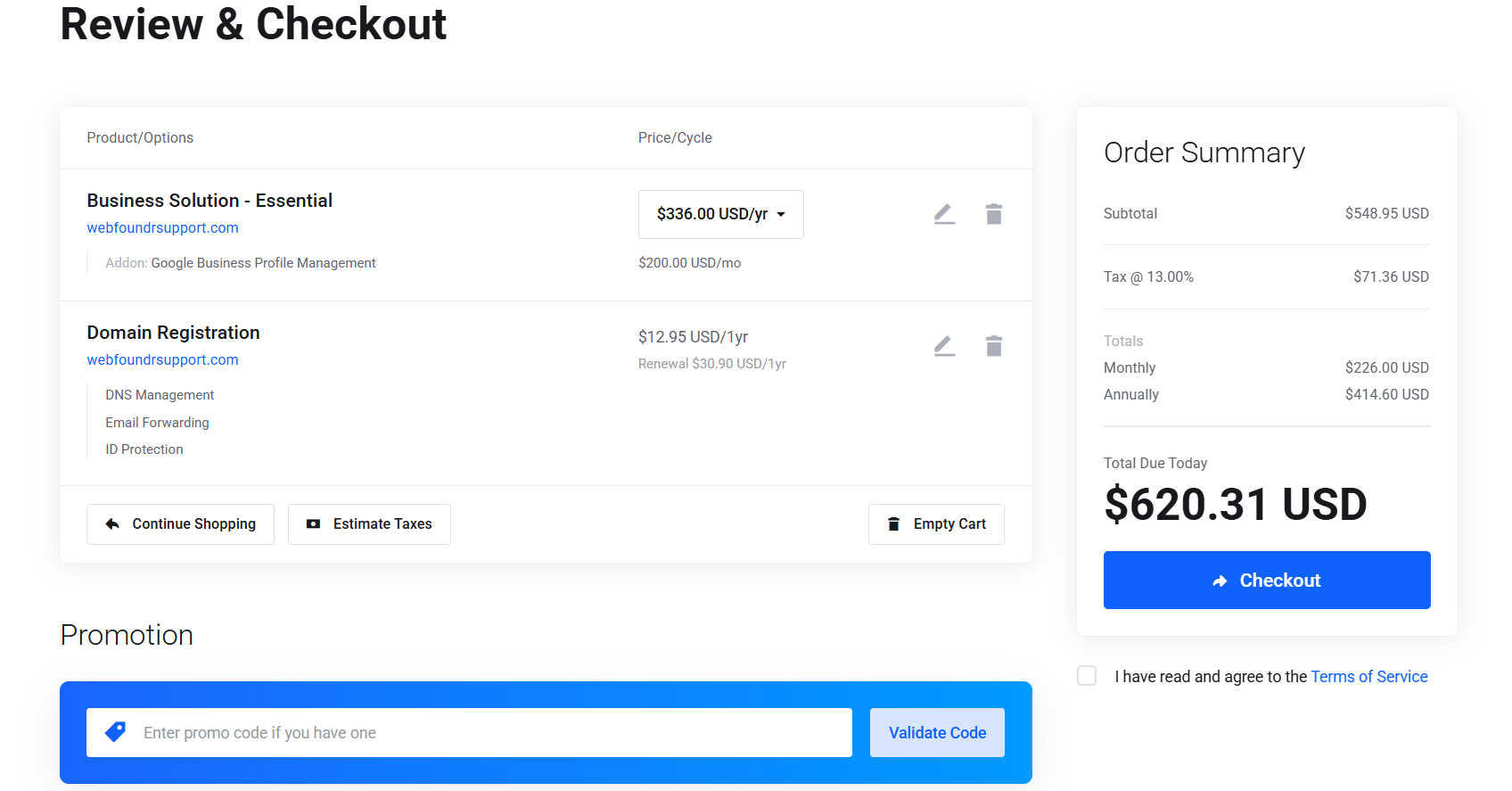
If you'd like to transfer another domain, you can go back to our Instant Domain Search and repeat the above process.
Complete payment
If you're an existing customer, make sure to click the Already Registered button to login. If not, proceed with filling out your information. It's important you enter valid information as our order system will not process your payment if it cannot be verified. Additionally, new customers will need to enter a unique four-digit PIN number a , to be used for verification if you need to contact support.
Finally you can enter your payment method and complete the payment. For domains, it's highly recommended you use a valid debit/credit card (we accept Visa, Mastercard, Discover, and American Express), as PayPal cannot process an auto renewal. Remember, domains must be renewed each year, and failure to pay will result in the domain becoming available to the general public. Also, Credit Card (Stripe) is best for International cards outside the United States.
To complete your order, please review our Terms of Service and Payment Policy to ensure you understand our compliance guidelines. Domain registrations and transfers are not refundable as they're immediately submitted to the registry.
Wait for the domain transfer to complete
Once your payment is completed your domain will be visible in the Webfoundr Client Portal as Pending.
When your current domain registrar approves the transfer, the status will change to active automatically, no further action is required on your end.
Most all domain registrars automatically approve transfers within 2 - 5 business days, as long as the above steps were completed correctly (i.e. correct EPP code/domain unlocked). If there are any issues, our billing team will send you an email. It's also important to know, some domain registrars such as GoDaddy will instantly approve domain transfers if you contact their team after you've placed your transfer order.
Once your domian transfer completes, you''ll be sent an email to verify your email address. Make sure to click the link in this email to keep the domain active.
Make sure to verify your email address
For all new domain registrations/transfers, we must verify your email address is valid. Within a couple hours of your transfer completing you will receive an email from the registry containing a link that MUST be clicked within 15 days. Depending on the TLD of your domain, the verification email might be slightly different.
Failure to click this link WILL result in the registry placing it on HOLD, disabling it (meaning your website will go offline). If you do not see this email within 24 hours of registration, please check your Spam/Bulk email folder or reach out to our team to have it resent.