There is nothing more flustering when your emails don’t come through.
This is one of our most “cursed out” reasons on support, and I really can’t blame people. If my email isn’t coming in as it should, I freak out!
Email is essential to any business or individual, so having problems is a lot like losing power or being somewhat cut off from the world.
Luckily, there are a number of different things you can do to diagnose email issues, and most of the time, the fix is pretty simple.
Check the Webmail client
If you’re not getting email on your phone, computer, or other mail client, it’s always best to check our Webmail to make sure it’s routing to the server.
As long as you’re hosting your email with us at Webfoundr (and not a third-party provider such as G Suite/Google Workspace).
You can check your webmail by going to https://www.yourdomain.com/webmail (make sure to replace it with your domain). You should then log in with your email address and password.
After login, you’ll need to select Roundcube for the Webmail client and then proceed to your inbox
Once logged in, you should look to see if emails are hitting the inbox. If so, and you’re not seeing them in your email client (i.e., phone, computer, etc.), then you should double-check your incoming mail server, ports, username, and password.
Track Delivery in cPanel
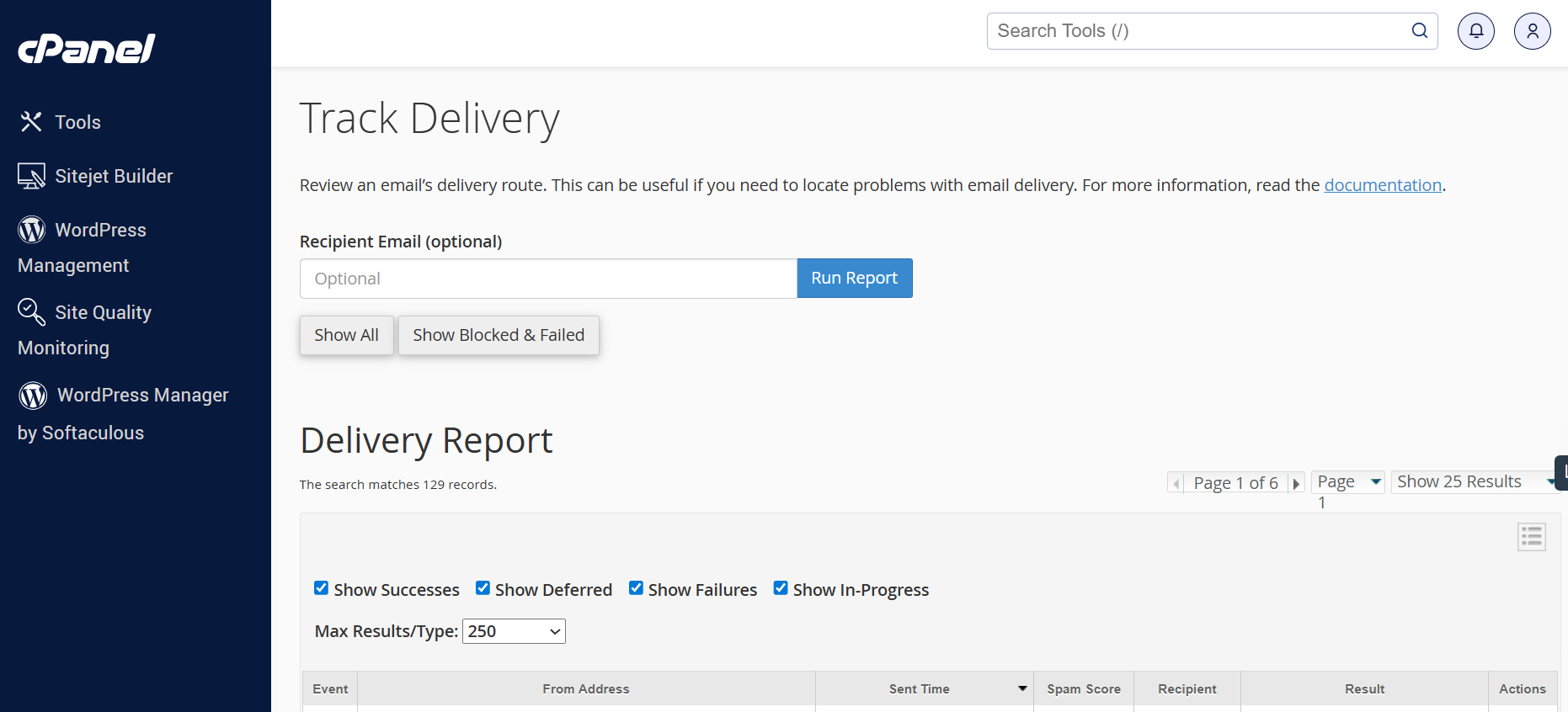
One of my favorite features inside of cPanel is their Track Delivery option.
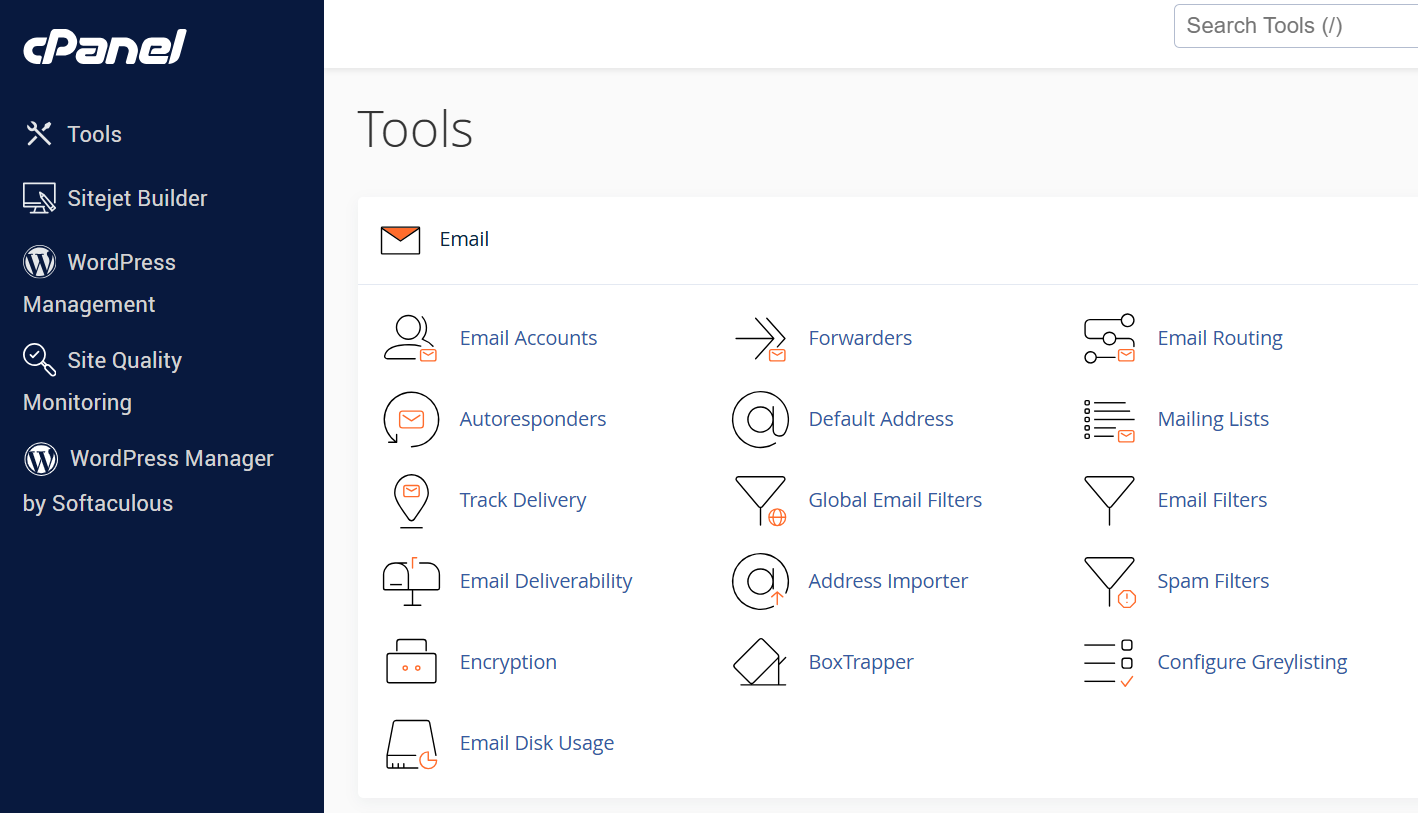
Simply log in to cPanel -> Track Delivery. It’ll show you exactly what’s going on with all of your email: