Using Google Apps for your email is easy to configure with your account! Just follow these simple steps to update your MX record.
We recognize that many clients use Gmail and Google Apps. In order to utilize these popular services, you must configure your domain’s MX records to direct mailflow to Google mail servers.
The steps below will quickly show you how to do this! The official Google instructions can be found here!
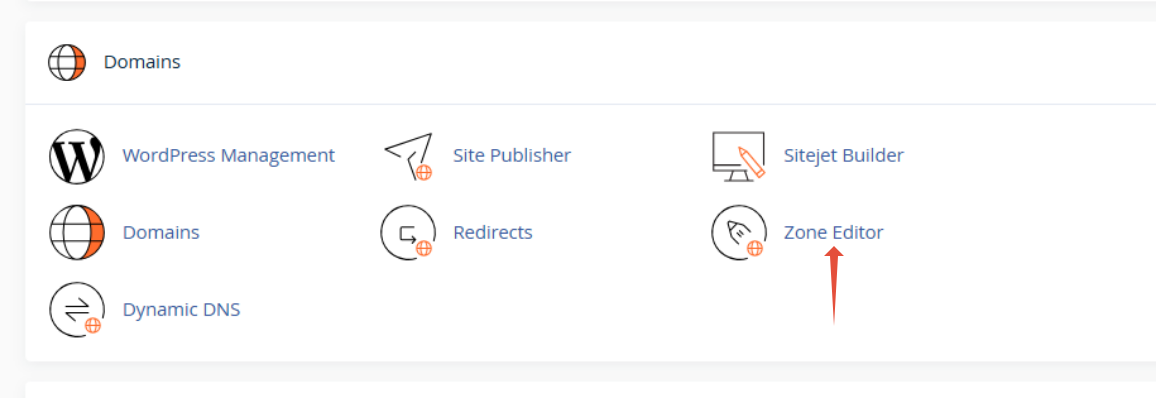
STEP 1: Login to your cPanel account and click on Zone Editor
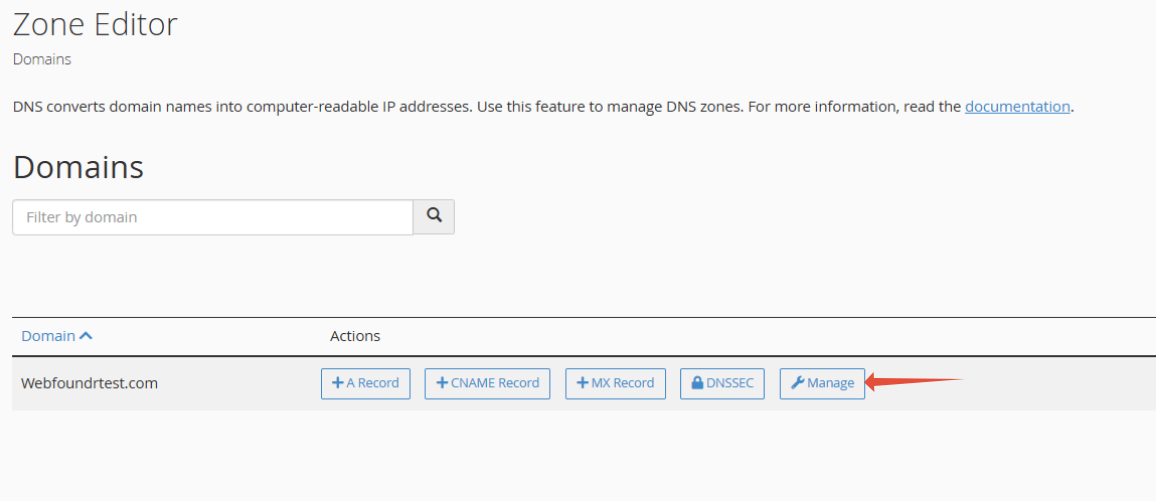
STEP 2: Click on Manage next to the desired domain.
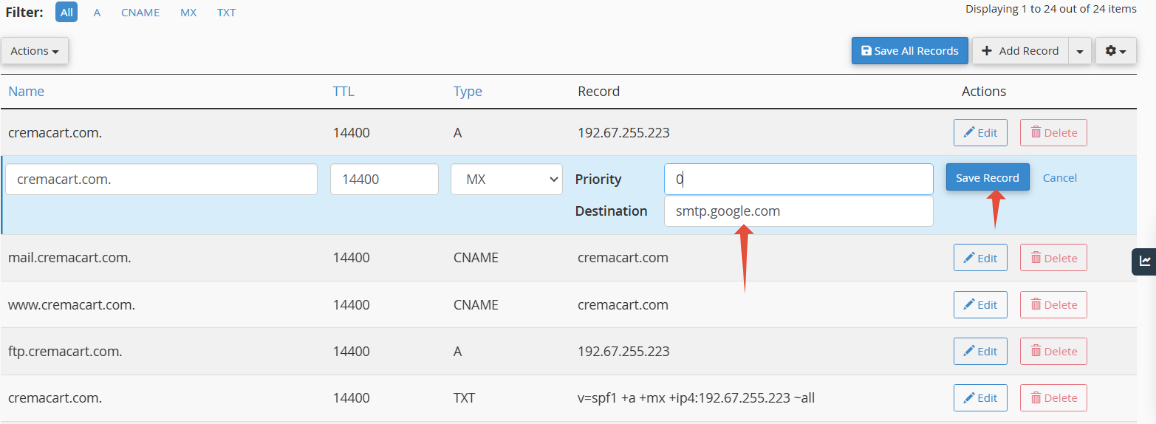
STEP 3: Find the MX record and click on Edit.
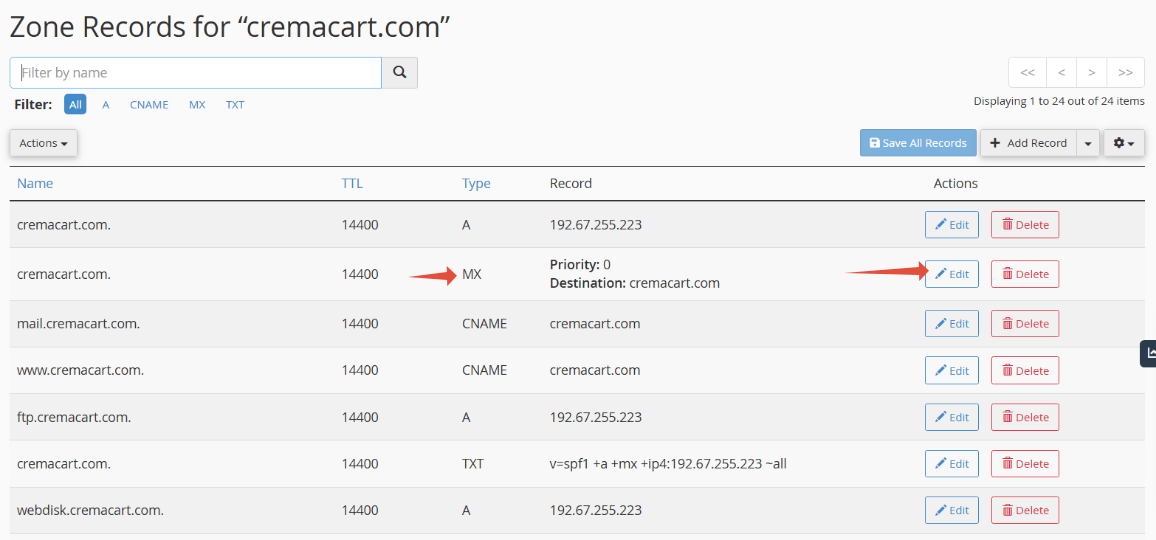
STEP 4: Now edit and put smtp.google.com. This 'new' MX record is the new MX record to use. You may have an older google suite account that uses up to 5 different MX records beginning with
aspx.XXX. It's ok. You can now use a single MX record smtp.google.com.
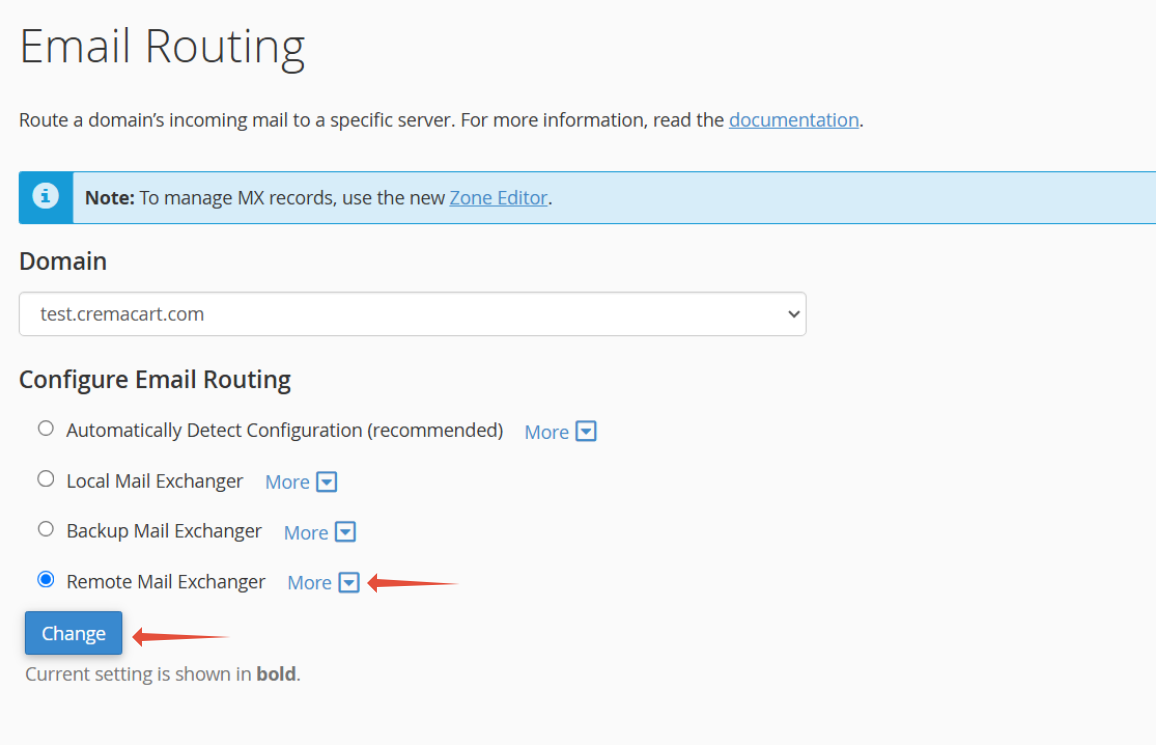
STEP 5: Now that we have updated the MX, now we need to set the server to remote mail exchanger. Click on Email routing.
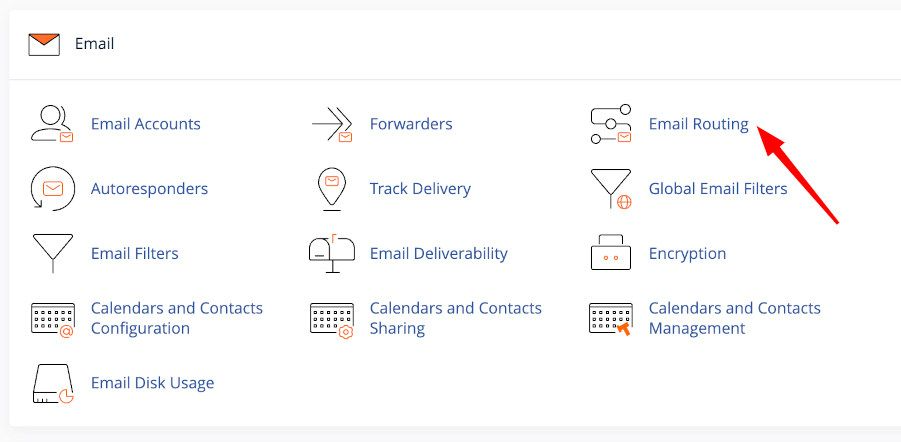
STEP 6: Now set to Remote Mail Exchanger and click Change.