One of the biggest challenges many of our new customers face is setting up their email accounts on their iPhones. It's also a challenge for us to assist you with it since we cannot actually 'see' or 'touch' your iPhone for you! This quick tutorial below should help walk you through the steps!
How To Manually Setup An iPhone Email Account
The most important thing you need to remember here, is to use the Incoming and Outgoing mail servers that are provided inside of cPanel. Since SSL is free an automatic at Webfoundr you want to use the SSL settings. This ensures the highest level of security.
To see your email configuration information, log into cPanel and click on Email Accounts in the Email section then select the Connect Devices button next to the email you want to configure.

As a general rule, you can use mail.your-domain.com as the incoming and outgoing mail server (hostname). Replace 'your-domain.com' with your actual hosted domain you have with Webfoundr.
You should confirm you also have the correct password 'before' you attempt to setup your phone. You will be required to enter it 2x during this setup and you want to make certain you are typing it perfect 'each' time. So verify your password 'works' before you attempt to set it up on your phone!
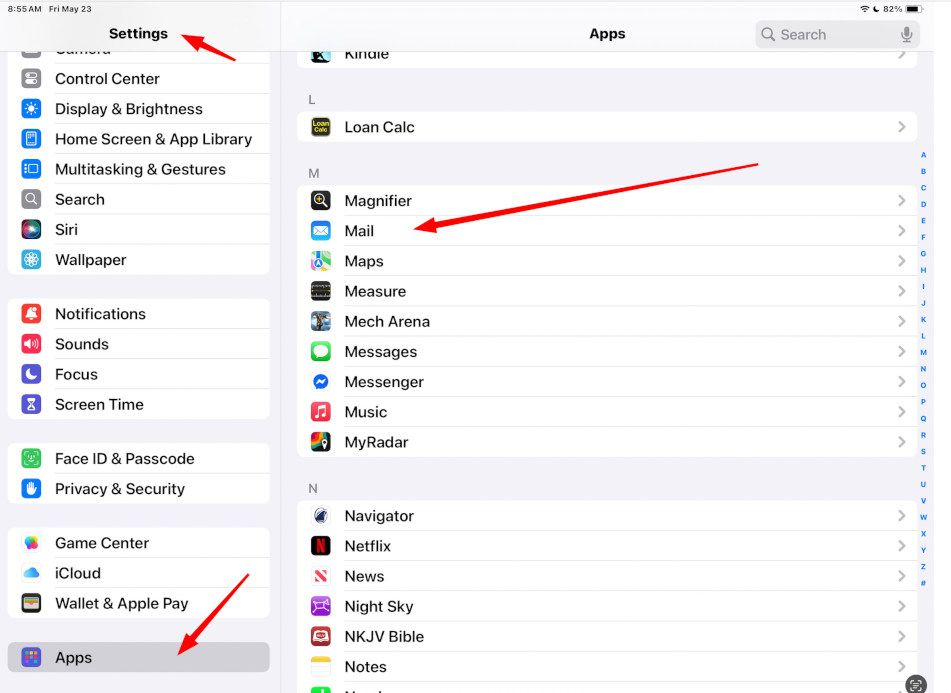
Step 1: Open the "Settings" app on your iPhone and scroll down to bottom on left and click on "Apps". Then find the Mail app and click on it.
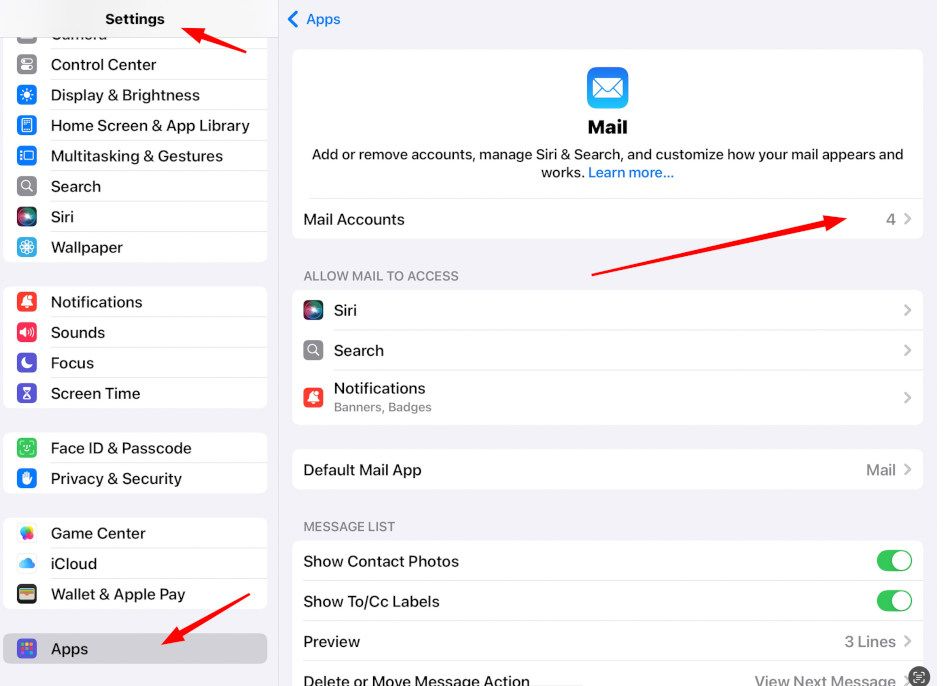
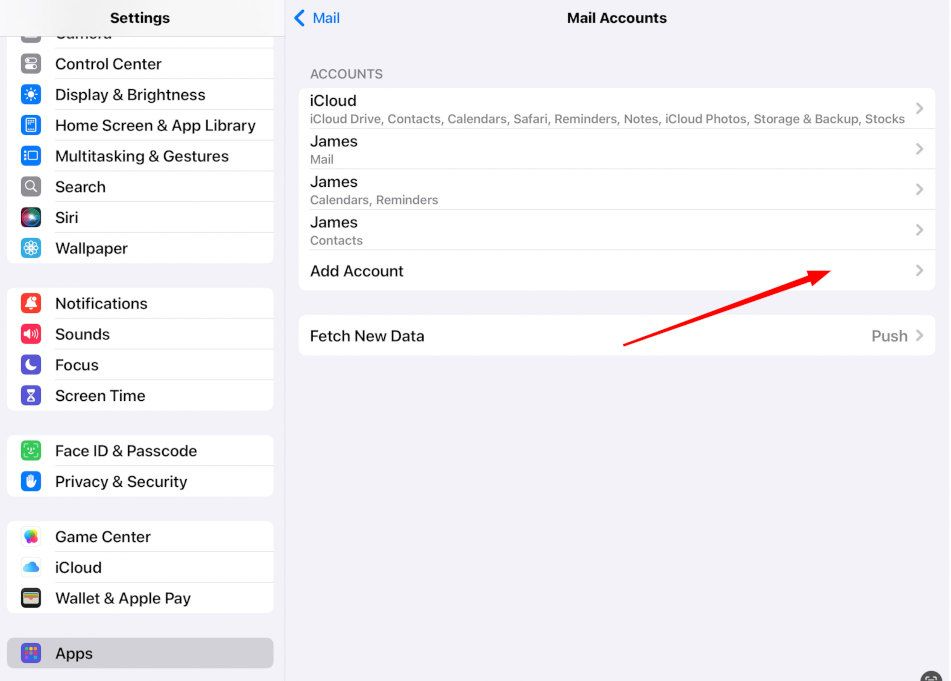
Step 2: Tap on "Mail Accounts". On next screen click on "Add Account"
Step 4: Select "Other" as the type of email account.

Step 5: Click "Add Mail Account".

Step 6: Under "Mail Account", enter your name, email address, password, and a description for the email account. Tap "Next".

Step 6: Choose "IMAP" or "POP" as the account type. IMAP allows you to sync your emails across multiple devices (recommended), while POP downloads emails to the specific device. Tap "Next".
In the "Incoming Mail Server" section, enter the following information:
Hostname: This is the hostname of your cPanel server, usually in the format of "mail.yourdomain.com", where "yourdomain.com" is your actual domain name.
- Username: Enter your full email address.
- Password: Enter the password for your email account.
In the "Outgoing Mail Server" section, enter the following information:
Hostname: This is the same as the incoming mail server, usually in the format of "mail.yourdomain.com".
- Username: Enter your full email address.
- Password: Enter the password for your email account.
Tap "Next".

Step 7: If all your information is correct and your password is correct you should get green toggle next to mail. Now click 'Save'!
Your cPanel-based email account is now set up on your iPhone. You can access your emails using the Mail app on your iPhone, and send and receive emails just like any other email account.