Enabling 2FA (Two Factor Authorization) for your Webfoundr account will greatly increase the security of your investment! Enabling this feature is easy to do! This tutorial will show you how to do this step by step!
If you already have a google authenticator app installed on your phone, proceed to STEP 2!
Step 1: Download and install the Google Authenticator App on your phone:
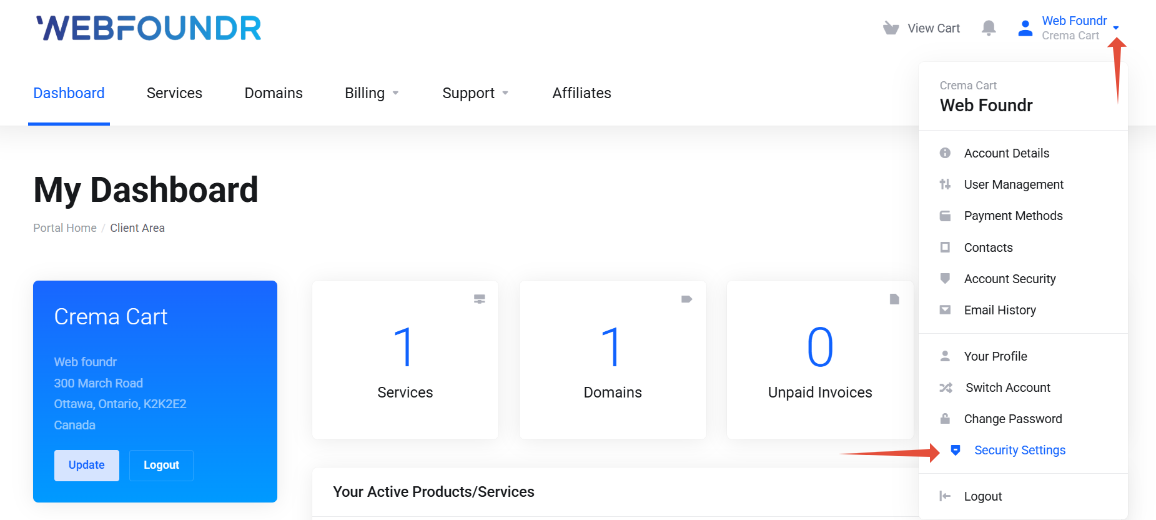
Step 2: Login to your WebFoundr Portal. Once logged in, upper right click on the menu and go to 'Security Settings'.
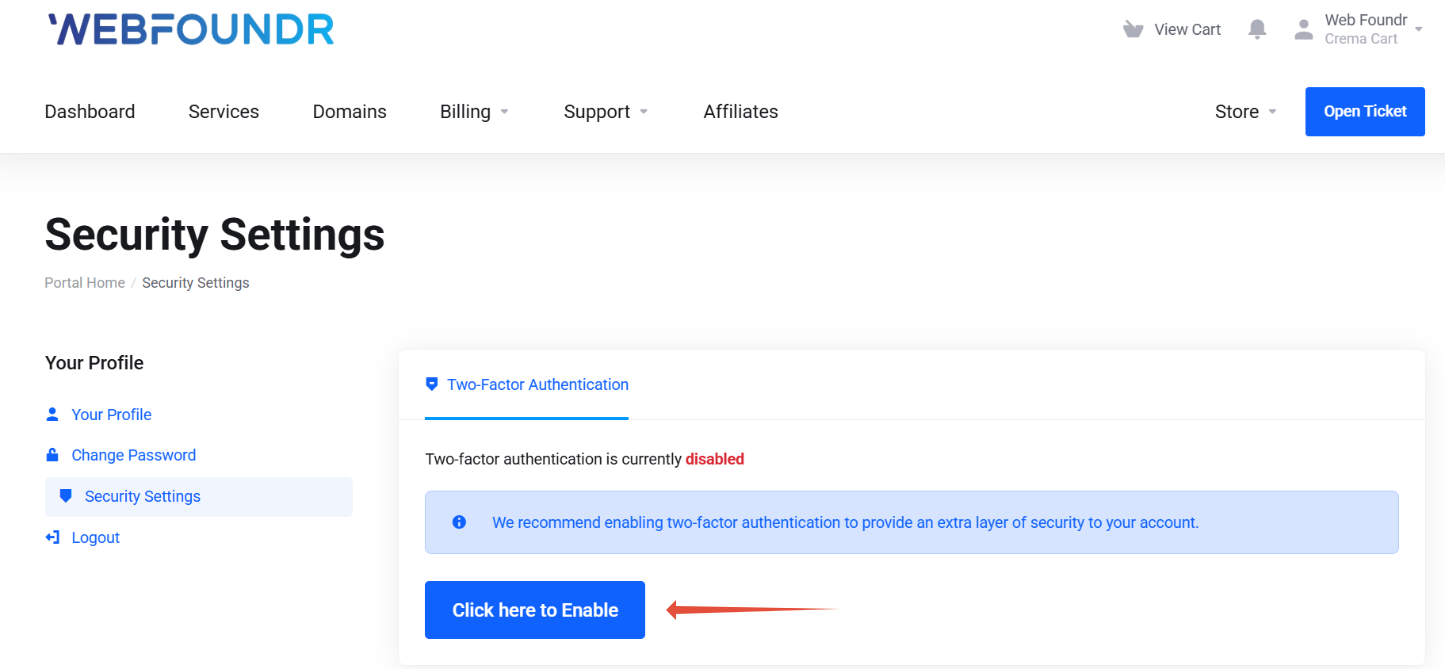
Step 3: Click the Two-Factor Authentication tab and then click to enable.
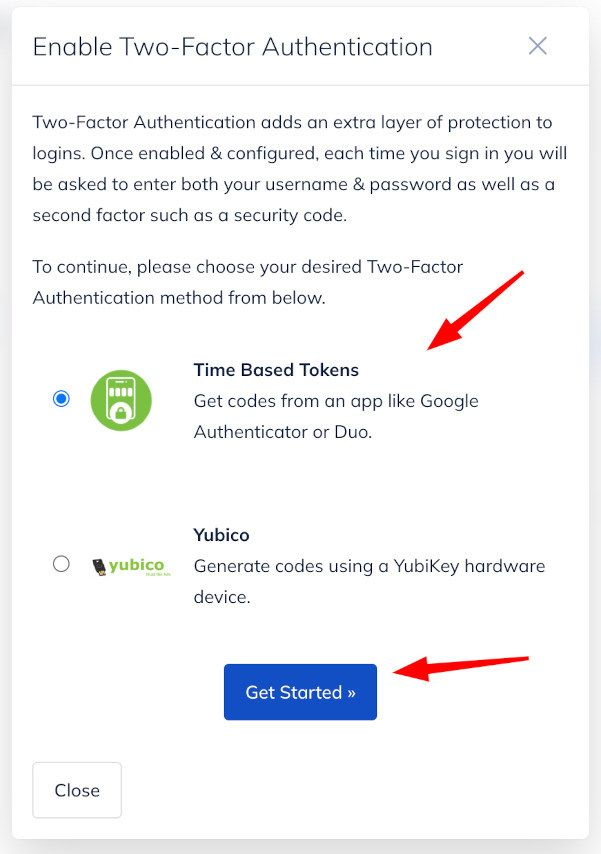
Step 4: A pop up will appear. Toggle your desired authenticator and click Get Started. For this tutorial we are using the Google Authenticator.
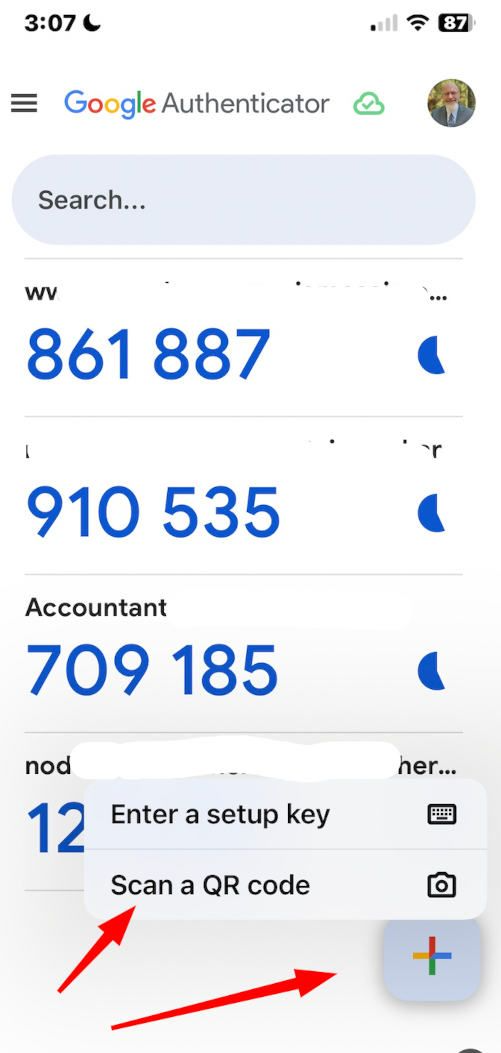
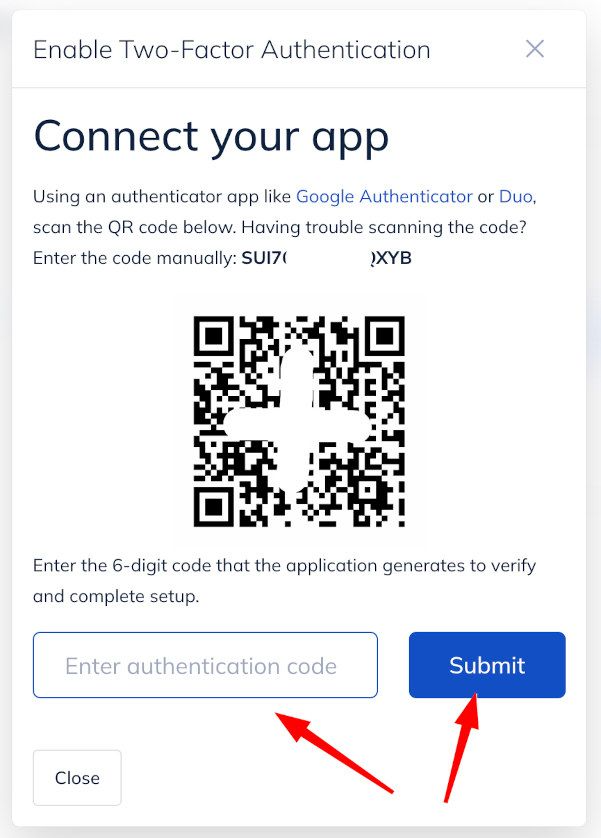
Step 5: Grab your phone, open the app you have installed or just installed and click the + to scan the code! After it scans, enter in the code on this screen.
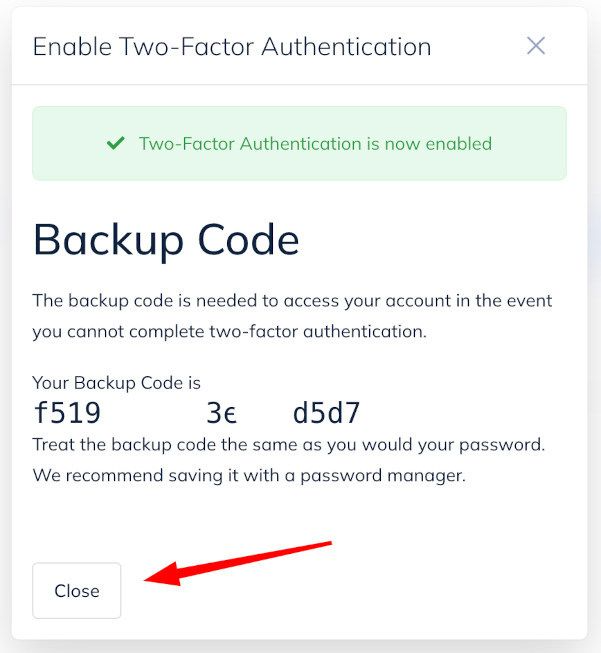
STEP 6: After you enter in the code on the previous screen you will see this message. Be sure to record the 'backup' code in case you ever need to authenticate without your phone! It's important to keep this in a safe location as it effectively is a second password.
Step 7: Almost there! Now that you have activated 2FA on your Webfoundr account, log out and give it a try! After you try to log in as you normally would, a second screen will appear asking you for the code to proceed. Grab your phone, open the app, and enter the code displayed. This code 'rotates' and will change periodically.