Traveling or need extra security on your webmail? This can be easily activated by logging into your cpanel.
STEP 1: cPanel > Email Accounts > Manage or simply via yourdomain/webmail
If you have never logged into your webmail before you will be on the main account screen. It will look very similar to this:
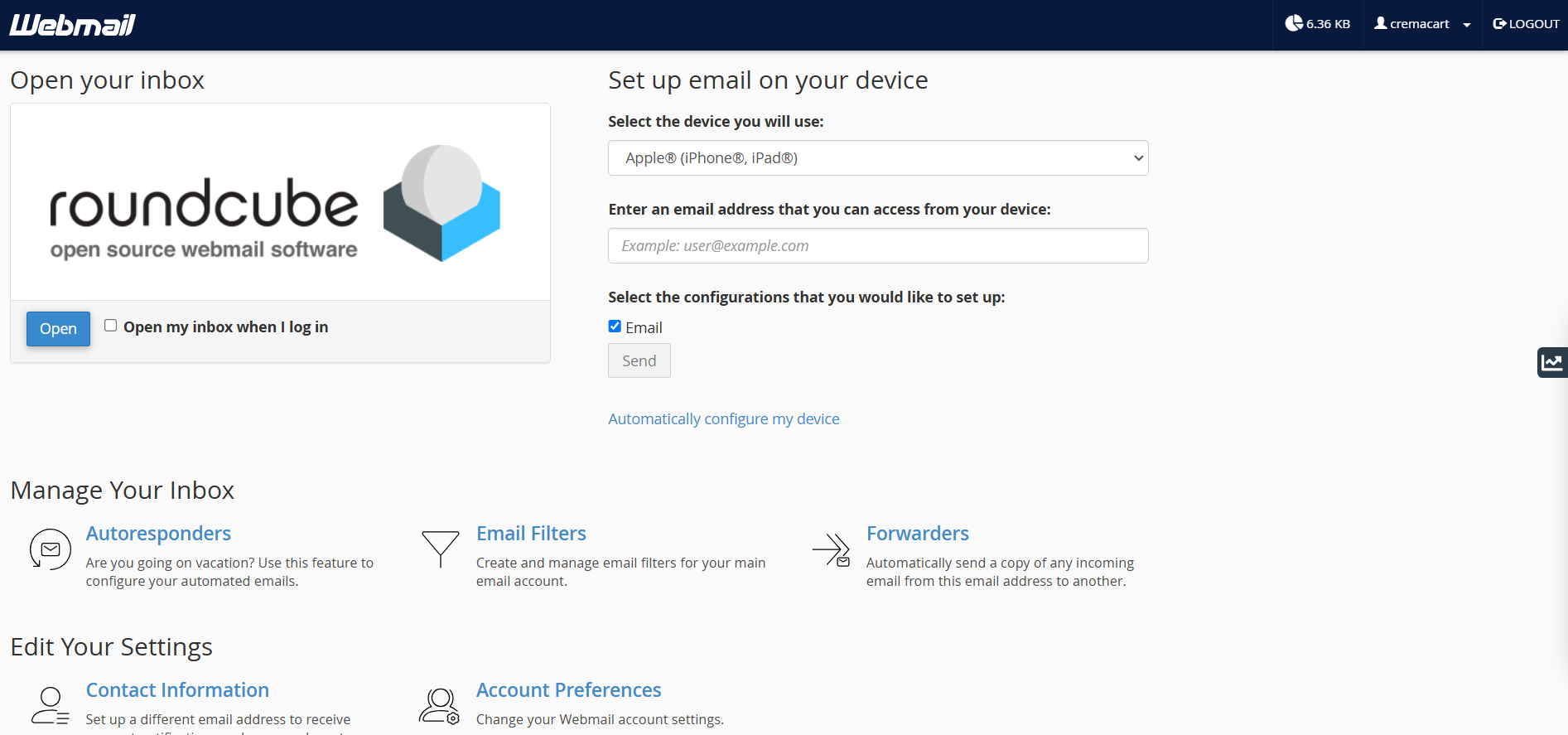
STEP 2: If you login to webmail and you have set it to go directly to the inbox, click here to get to the screen above:


STEP 3: Click to setup 2FA on your mailbox:

2FA requires a smartphone with a supported time-based one-time password (TOTP) app. We suggest the following apps for Android™ and iOS®. Both are free in the respective app store.
- Google Authenticator
- Duo Mobile
For this tutorial, we are using the Google Authenticator.
STEP 4: You will now see a QR code which you will need to scan into your authenticator.

STEP 5: Open the app and press the + at the bottom right.

STEP 6: Scan the unique QR code you see in webmail.
STEP 7: Take that number that is now displayed in your authenticator and enter it in here:

You have now successfully authenticate it. Now go test it out!
Visit: yourdomain.com/webmail
Login with your email address and password as you normally would.
After you login, you will now see a prompt for the 2FA.
Open your app and look at the generated number and punch it in. That 2FA code is automatically changed and random.