WordPress is the most popular content management system (CMS) in the world and powers north of 100 million websites.
It levels the playing field amongst entrepreneurs as it allows complete novices the ability to setup a professional looking website in a matter of minutes. No coding required!
WORDPRESS INSTALLATION STEPS
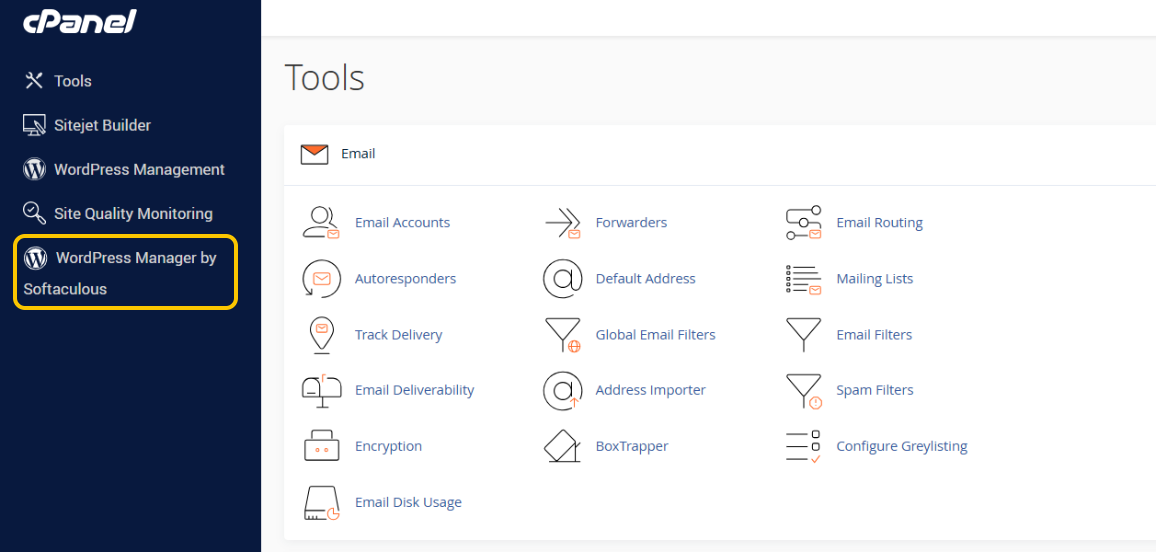
STEP 1: Login to your cPanel and click on 'WordPress Manager by Softaculous'.
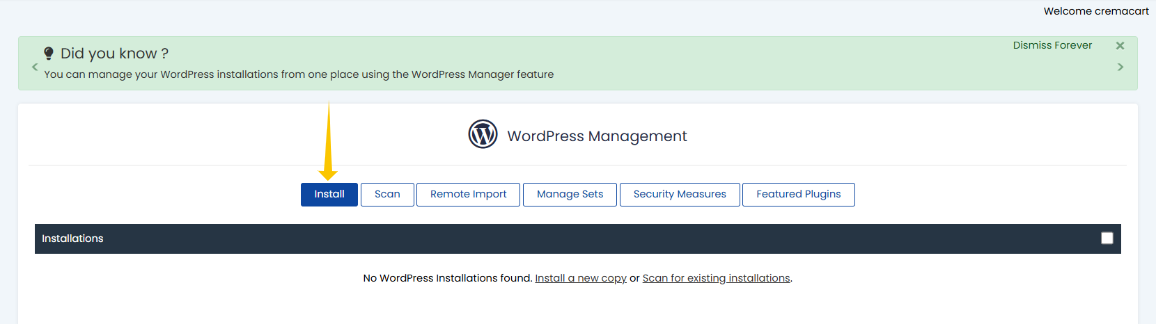
STEP 2: Click on Install
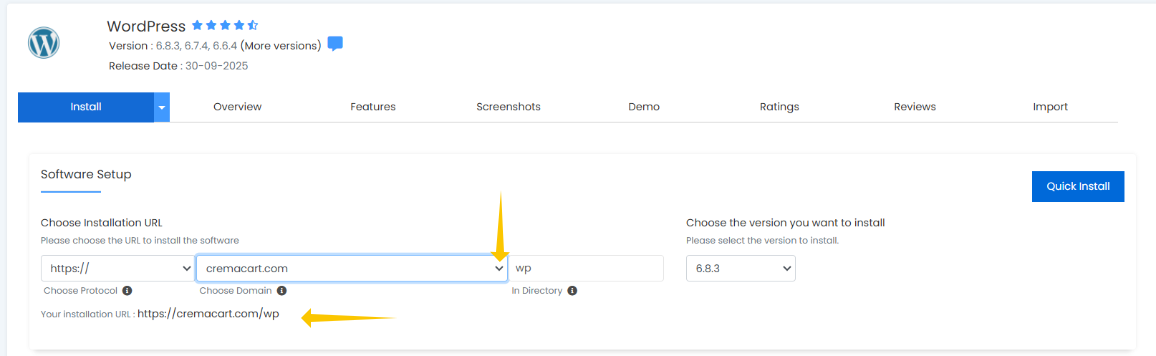
STEP 3: The next page is a little long. We will progress through the different sections of the installation on this page. Find your domain in the drop down that you wish to install WordPress on. Then move to the next section.
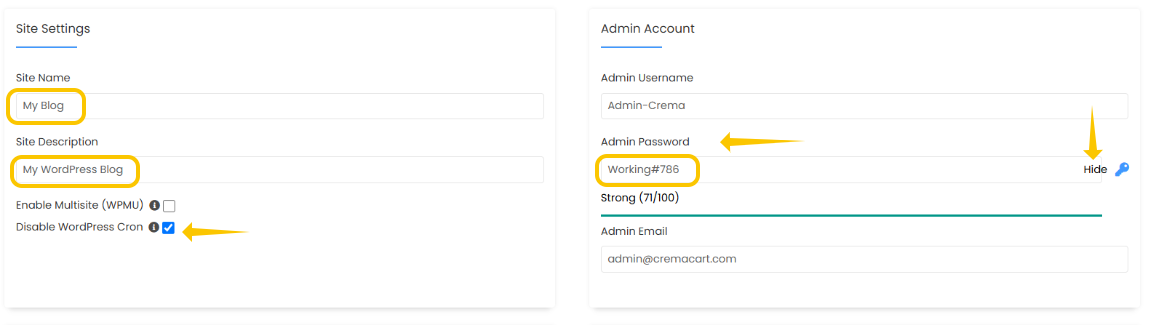
STEP 4: This next section, you can change the Site Name and description. (can be changed later). The default admin username is 'admin'. Please change that to be something else. In this example I simply added Admin-Crema to it! The password can be auto generated by clicking on that little blue key. Go ahead and disable WordPress Cron.
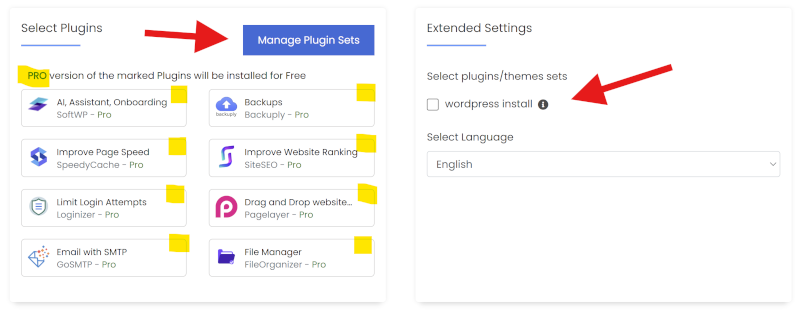
STEP 5: Uncheck all those Pro plugin add-ons. If you have purchased licenses from the respective plugin authors, by all means install them. If not and you do not know what any of them are, best to uncheck and not install them. You can always install plugins after the fact. Of note, if you have a list of plugins you'd like to have installed, you can use the Manage Plugin Sets and add a few of your favorites. Then come back to this form and you'll see the checkbox to the right to have them pre-installed for you when you click the install button. For now, just unchecked everything and proceed to the next section!
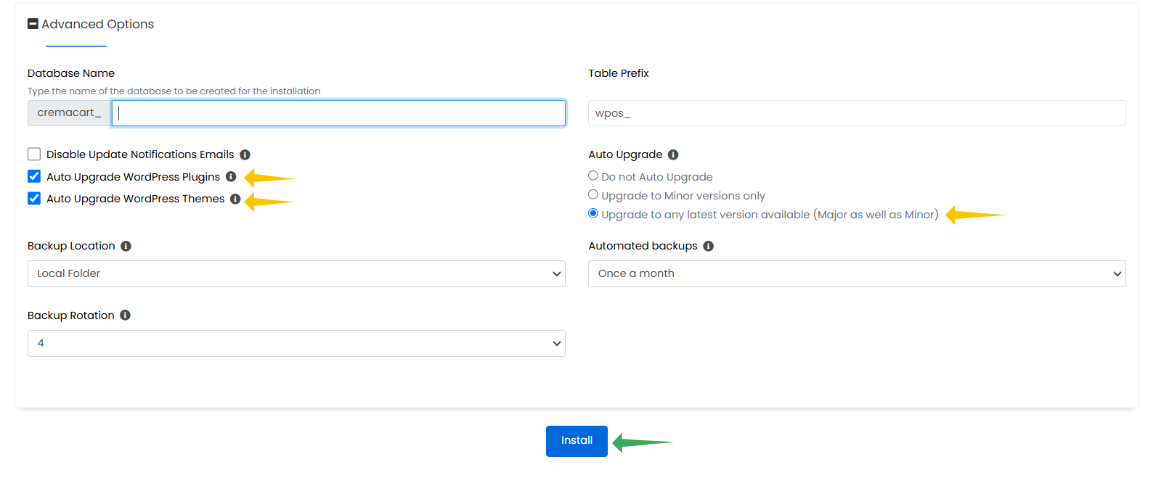
STEP 6: The Advanced section you'll need to click on the + symbol to expand it. It is recommended for security reasons to keep your plugins and themes and WordPress core files updated with the latest updates. Then click install.
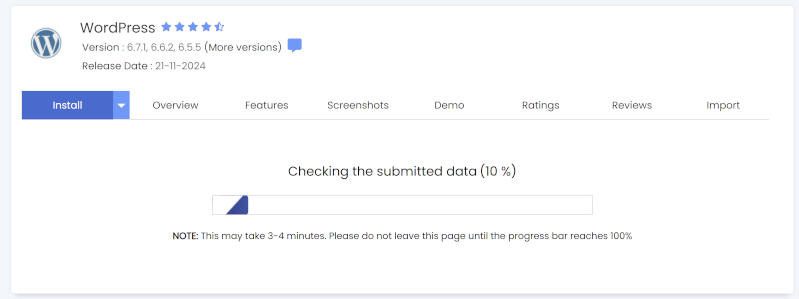
STEP 7: WordPress is now installing!
STEP 8: Once done you'll see the Congratulations screen showing you some of the details. At the bottom click on 'Return to WordPress Management'.
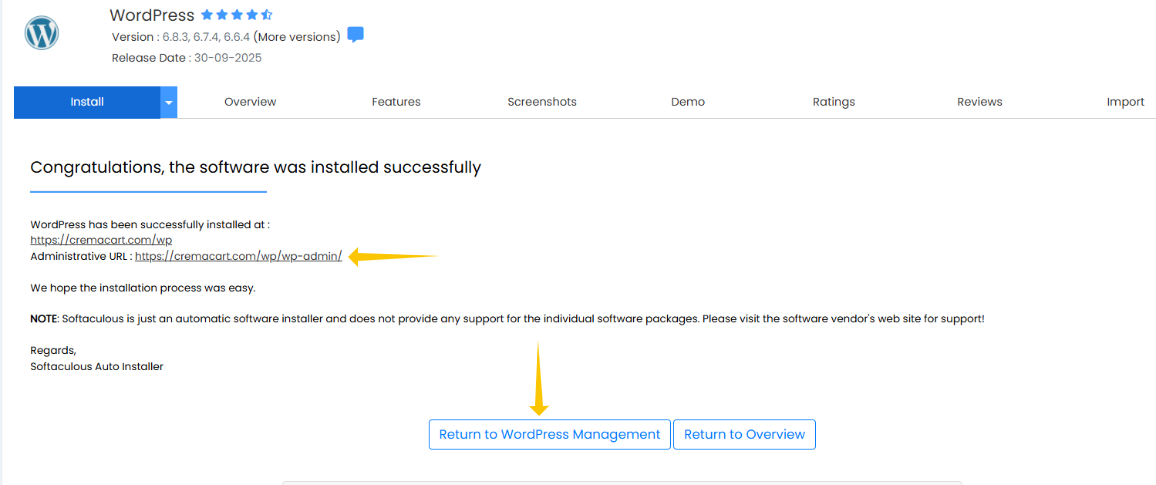
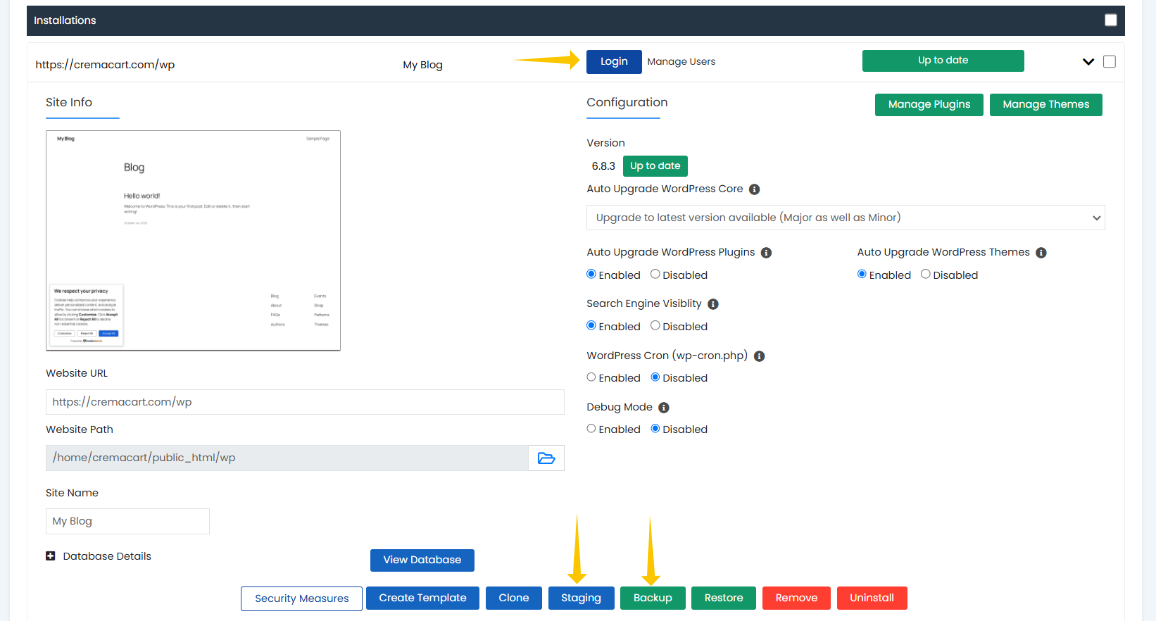
STEP 9: At this point, you can now click the Login and start working! It might be a great idea while you are starting out to read our next article on how to setup a 'staging' site for your new WordPress!
Was this article helpful?
That’s Great!
Thank you for your feedback
Sorry! We couldn't be helpful
Thank you for your feedback
Feedback sent
We appreciate your effort and will try to fix the article