Your Webfoundr.com Account allows for you to add sub-accounts underneath it so other employees/partners of your project can have access to the client area.
In this tutorial, we'll show you how to add a sub-account to the Webfoundr Platform.
Step 1: Login to the WebFoundr Dashboard!
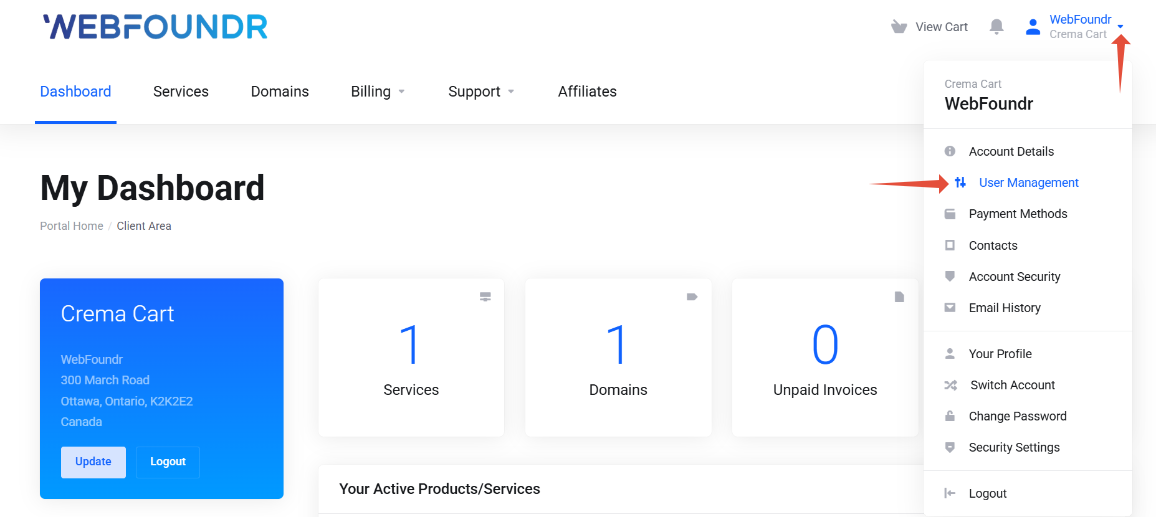
Step 2: Top right corner, click the drop down by your name and then click on User Management.
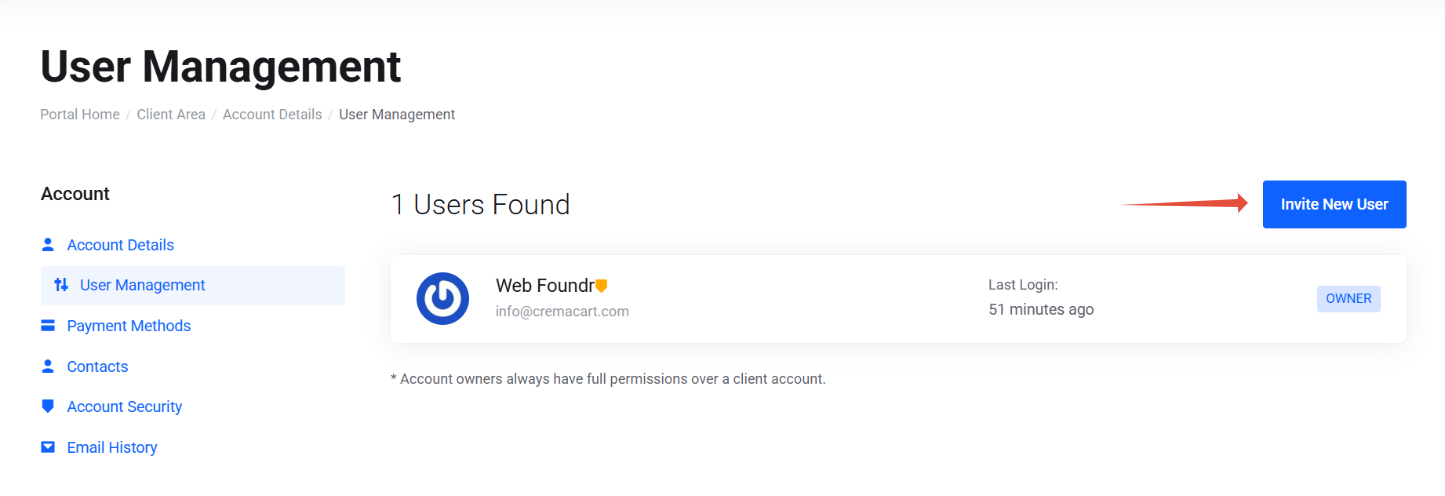
Step 3: On the next page click on Invite New User.
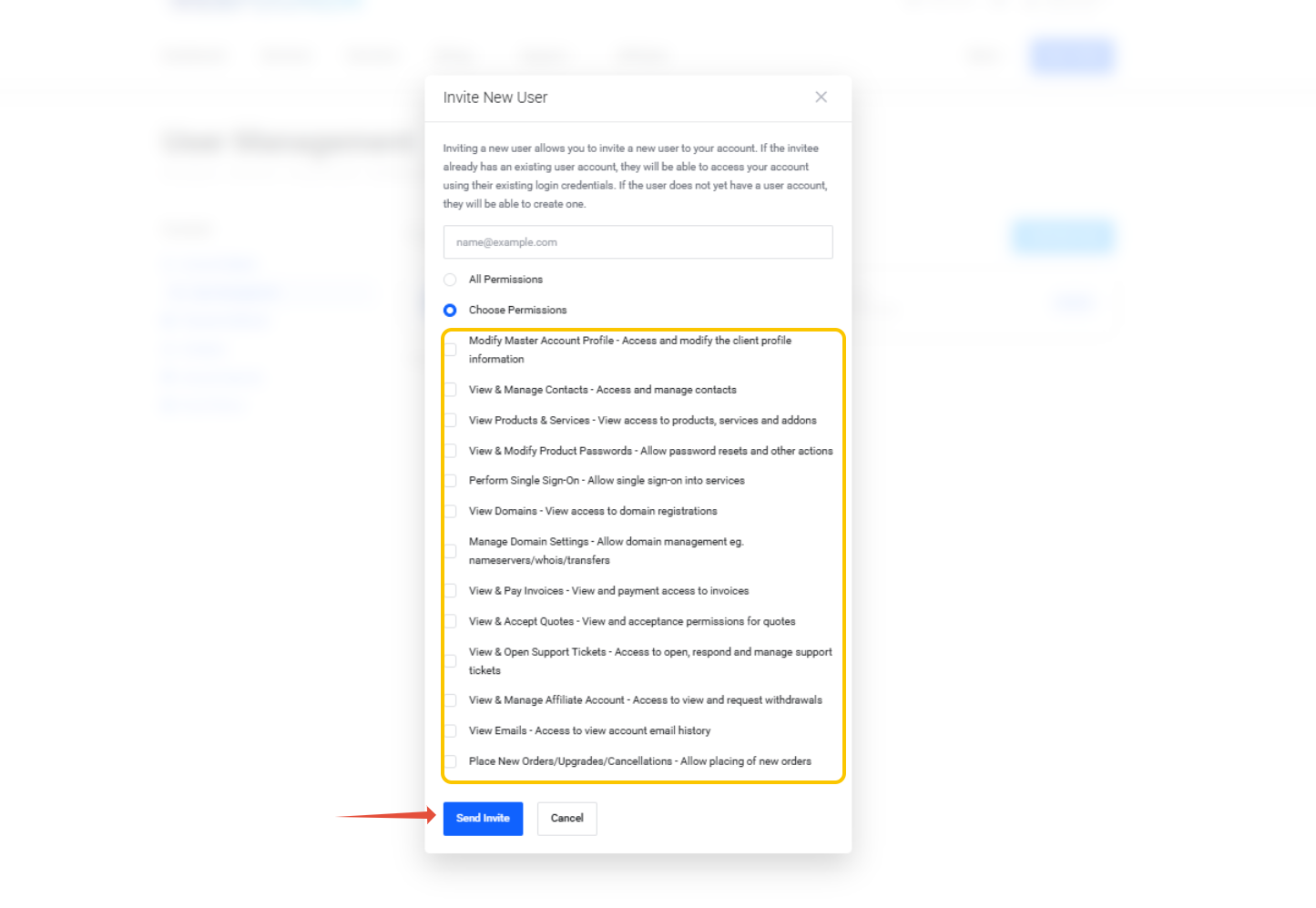
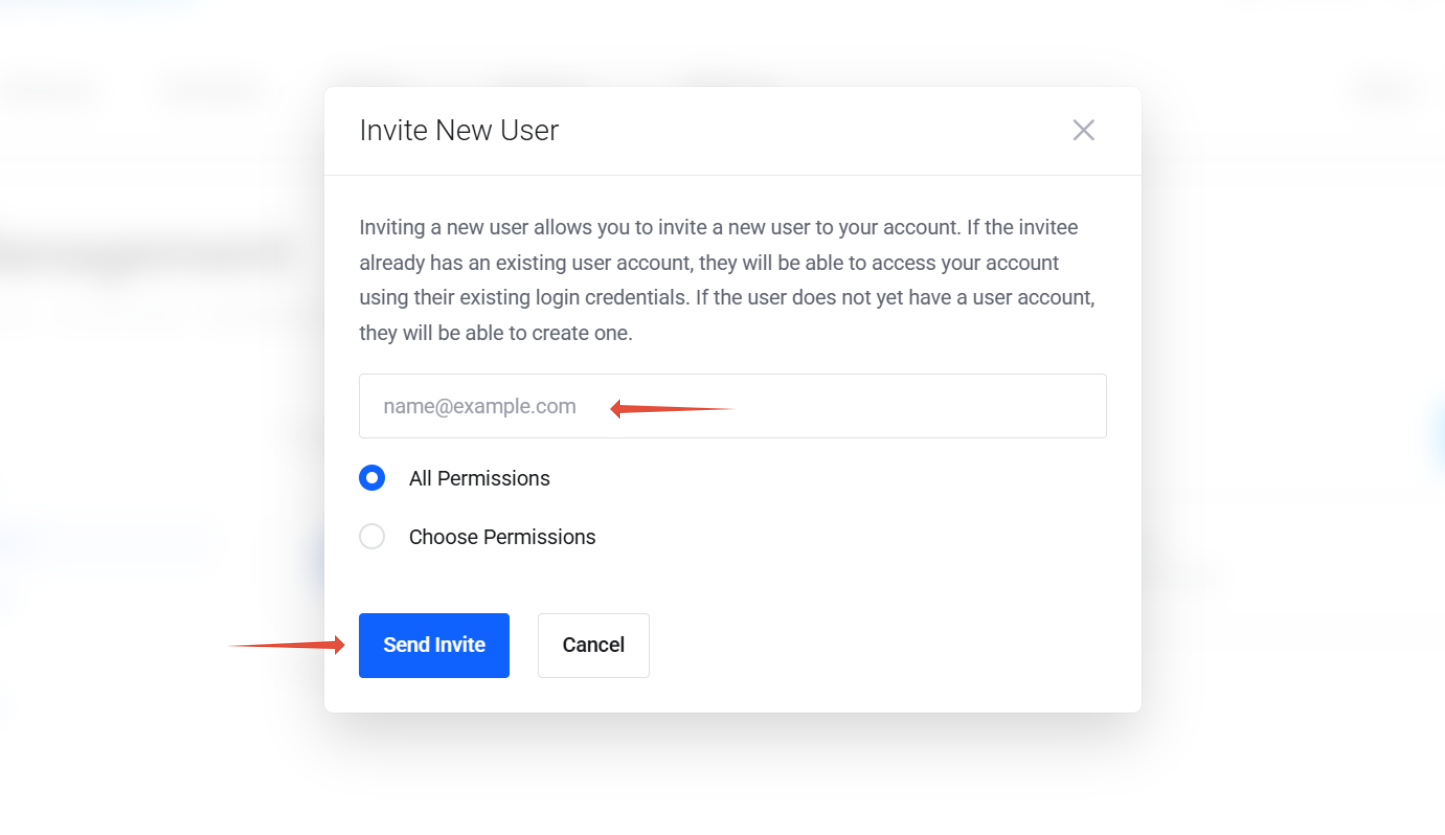
Step 4: Enter in the email address and the desired permissions. If you trust the user, feel free to give them all permissions. If not, you can decide what area of your Webfoundr dash you wish them to be able to access!
For less than all permissions, you can choose which permissions to give them. Once done, hit the Send Invite button!