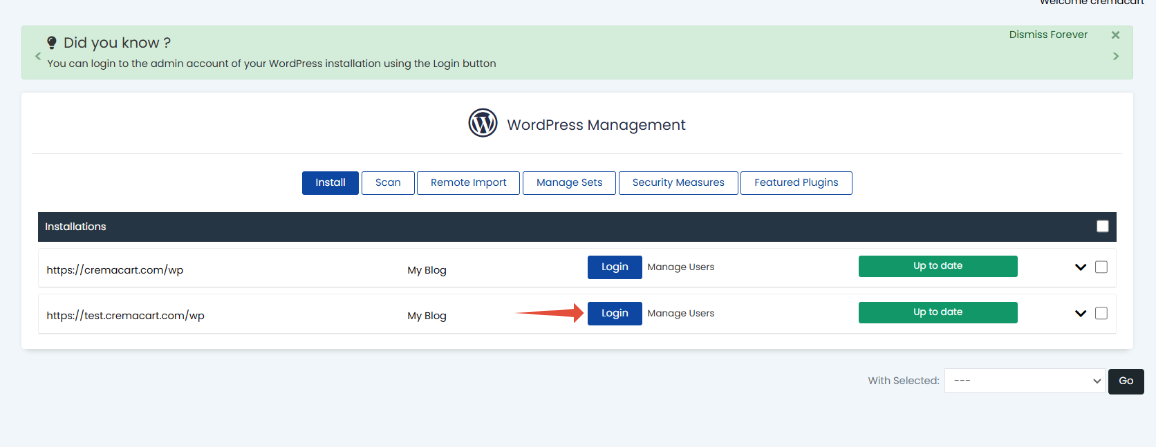
Did you manually install your WordPress installation or recently migrate over to WebFoundr? Love Softaculous and want to manage your WordPress website via Softaculous? This quick tutorial will explain quickly how you can easily import your installation into Softaculous!
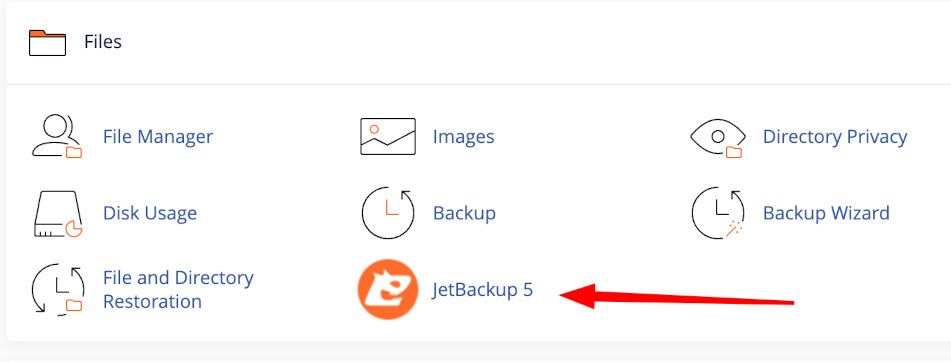
Step 1: It's always a good idea to make a quick backup should anything happen that is not desired. To do this, follow this quick tutorial on how to make a full Jetbackup.
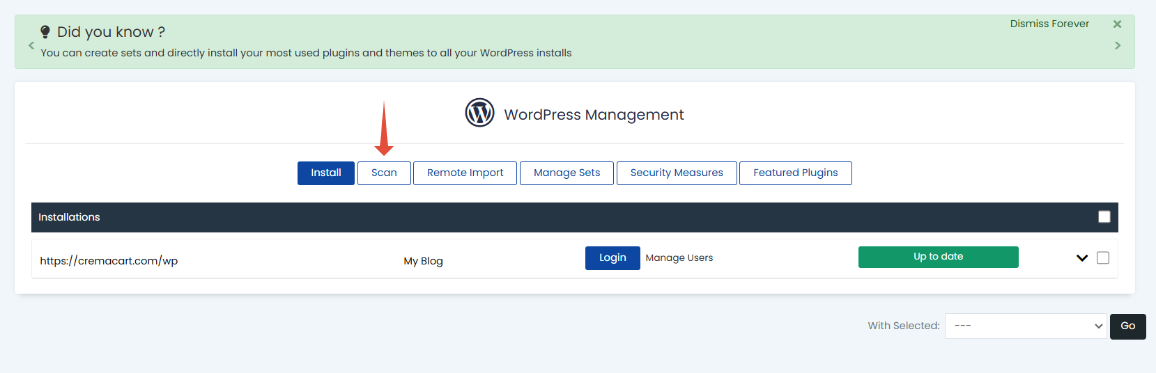
Step 2: Login to your cPanel. On the left side click on Softaculous so it opens this window. In this particular help doc, I already have an installation. But I installed a separate installation so I could import it into Softaculous! Click on the 'Scan' button!
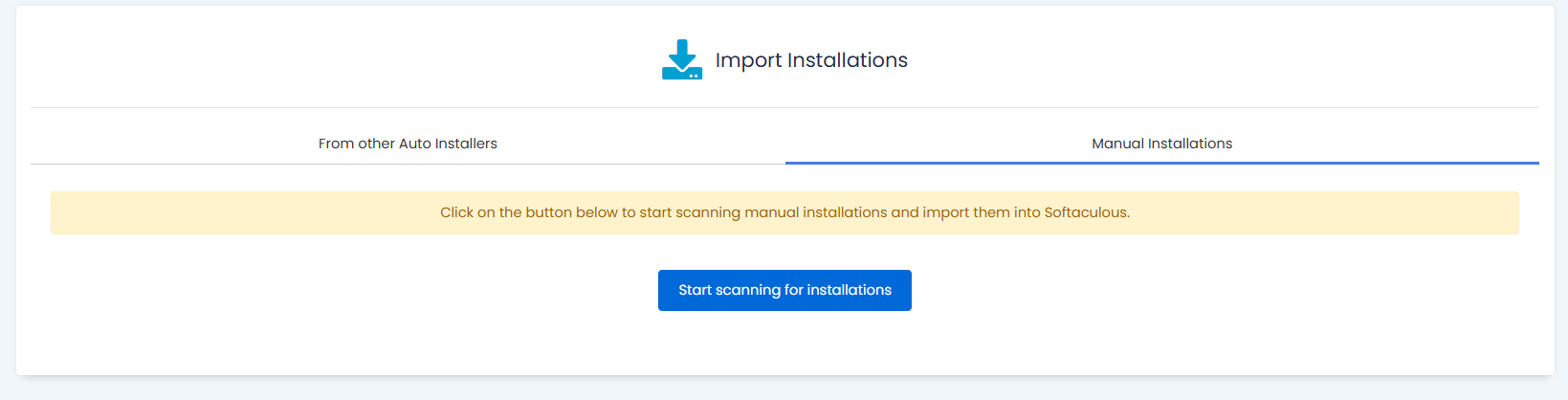
Step 3: Click on Start scanning for installations.
Step 4: Found it! Now click on the Return to WordPress Management!
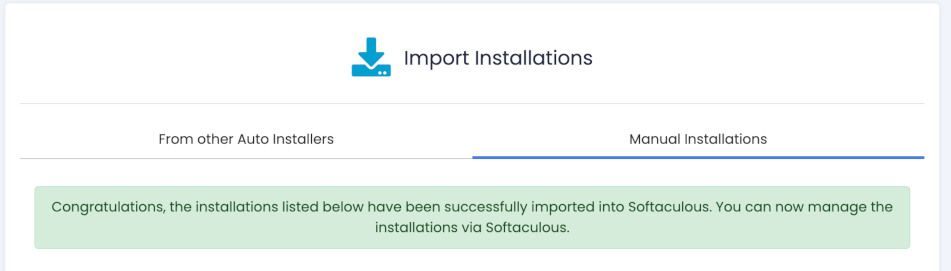
Step 5: Now you can see it in your primary Softaculous WordPress installations and manage as you see fit! That's it!